Maptitude Help / Sharing Your Maps / Creating Map Videos
Creating Map Videos
The Record Video toolbar lets you create video files of a map window. When you record video, Maptitude creates a video file of all changes that you make to the active map window. There are several guidelines you should consider when recording video of a map window:
- Everything that is visible in the map window area is recorded. Therefore, you may want to move the Record Video toolbar off of the map so that it is not included in your video. Similarly, you may want to attach the map legend to the map to ensure that it is always visible in its entirety.
- Depending on your computer and graphics processing speeds, video files that are larger than 1024 pixels in width or 728 pixels in height may slow down the software.
 To Create a Video of a Map Window
- Set up your map as you would like it to appear at the beginning of your video.
- Choose File>Share>Record Video to display the Record Video toolbar.
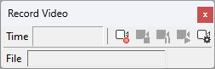
- To record audio or to modify the default frame rate, click
 to display the Video Recording Options dialog box and make any changes as follows:
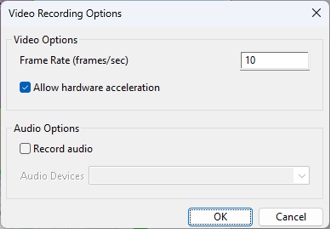
- Enter a the number of frames per second in the Frame Rate edit box
- To record audio, check the Record audio box and choose any installed audio device from the drop-down list
- Click OK when you are finished
- Click
 to display the Save As dialog box.
 - Choose a video format from the Save as Type drop-down list, choose a folder, enter a file name, and click Save. Maptitude starts recording the video.
- Make the changes to the map that you want to record. Click
 if you need to pause recording and click again to resume recording.
 - Click
 when you are done to stop recording the video and enable the Play
  button.
 - Click to play the video. Maptitude launches your default video player application and plays the video.
- When you are done, click the Close button in the upper right corner of the toolbar or choose File>Share>Record Video again to close the toolbar.
©2026 Caliper Corporation