Last updated on May 11, 2026
Adding Drive Rings
You can use the Drive Ring  tool to create drive-time or distance rings that show the locations that are within a certain amount of time (in minutes) or distance (in miles or kilometers) from one or more origins. You choose the origins for the rings by clicking on the map or by using features in a point layer. You then choose the number of rings and the interval.
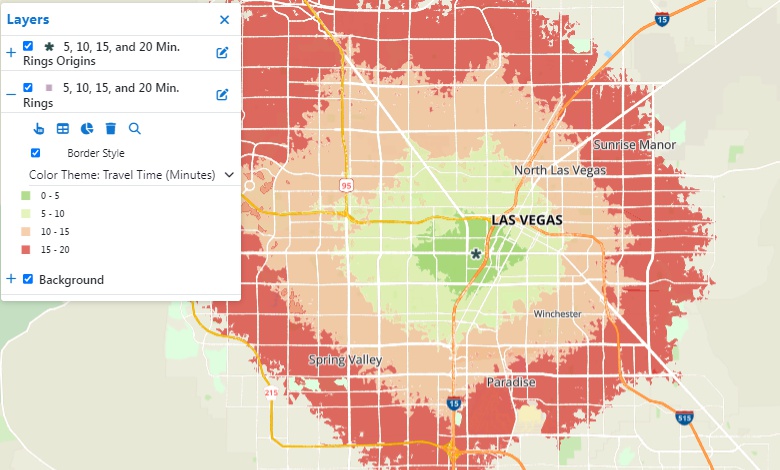
When you create drive rings you can choose to calculate demographics for the rings. Maptitude Online will calculate demographics for each individual ring.
When you have more than one origin, you can choose whether the rings are merged or separate. For example:

When you create merged rings you can choose whether the demographics are for the individual rings or cumulative as illustrated here:
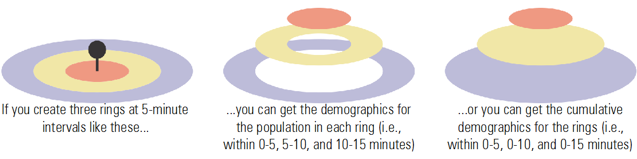
When you create separate rings, the demographics will be cumulative.
 |
NOTE: This feature is available only for roads in the USA. |
To Add Drive Rings to a Map
- Click Drive Rings on the Sidebar.
- Choose how you want to define your origins as follows:
To do this... Do this... Choose the origins by clicking on the map Click  and click on one or more locations on the map. Maptitude Online displays a pin icon at each origin location. To remove a location, click
  and click on a pin icon.
Choose the origins from features in a point layer If your map contains a point layer, click  and then choose a layer to use from the Layer drop-down and choose whether to use All Features or a selection set from the Using drop-down.
 - Enter a name for the drive-time ring layer.
- Choose the number of rings to create.
- Choose the interval size of the rings and the units.
- If there is more than one origin, check the Separate Rings box to create separate rings around each of the points or uncheck it to create merged rings.
- If you want to compute the demographics for the rings, check the Calculate Demographics box.
- Click OK.
©Copyright Caliper Corporation www.caliper.com • 1172 Beacon St., Suite 300, Newton MA 02461 USA