Last updated on May 11, 2026
Managing Users and Teams
There are two levels of Maptitude Online users: Basic users and Administrative users. Administrative users have the ability to add and remove users and create and manage teams. Basic users can see to which teams they belong and what other users are part of that team.
Managing Users (Administrative Users Only)
Administrative users can add and manage user accounts. You add and manage users by choosing Subscribers from the Options and Settings Menu.
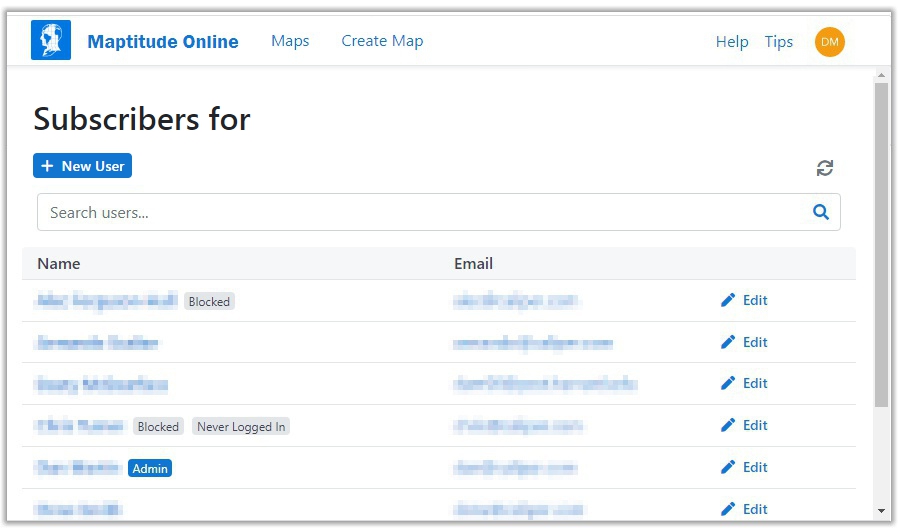
- Choose Subscribers from the Options and Settings Menu (located at the top right-hand corner of the screen in a drop-down under your user name icon).
- Click + New User to display the Add User dialog box.
- Enter a user name in the Name box.
- Enter the user's email address in the Email box.
- Click Create.
 |
NOTE: You can add users up to the maximum for which you are licensed. Click Account to see your account details including the maximum number of users. |
- Choose Subscribers from the Options and Settings Menu (located at the top right-hand corner of the screen in a drop-down under your user name icon).
- Click the user's name or click
 Edit.
Edit. - Make changes to the users as follows:
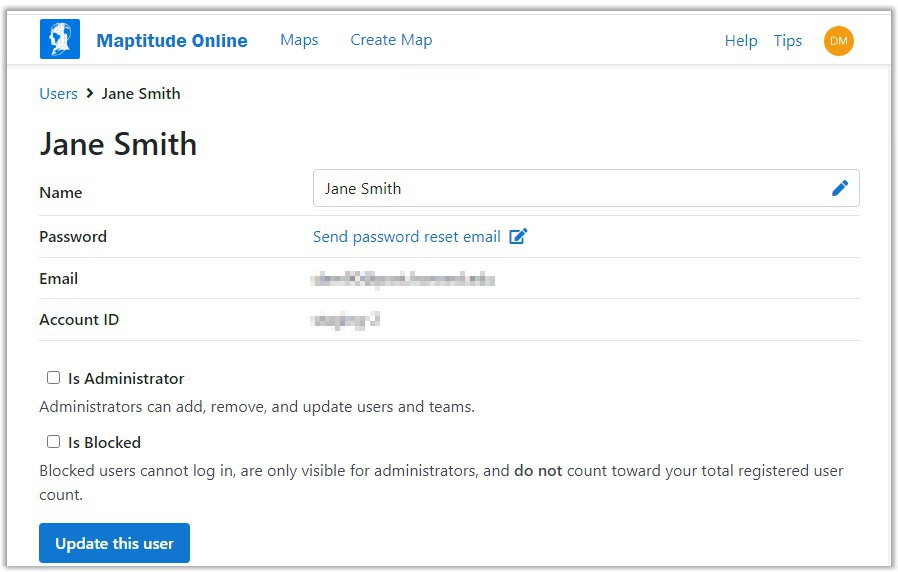
To do this... Do this... Rename the user Edit the name in the Name box. Block a user Check the Is Blocked box. Unblock a user Remove the check from the Is Blocked box. Make a basic user an administrator Check the Is Administrator box. Make an administrator a basic user Remove the check from the Is Administrator box. Send a reset password email Click the Send password reset email link. - Click Update this user.
- Choose Subscribers from the Options and Settings Menu (located at the top right-hand corner of the screen in a drop-down under your user name icon).
- Click a user's name or click Edit. Note, you cannot delete a user who is an administrator.
- Click Delete User.
- If the user owns any maps you will be prompted to transfer ownership to another user. Choose a user from the drop-down list and click Transfer. Maptitude Online transfers the maps from the user to be deleted to the chosen user.
- Click Delete to confirm. Maptitude Online permanently deletes the user.
Managing Teams
Basic users can see the teams to which they belong by choosing Users from the Options and Settings Menu (located at the top right-hand corner of the screen in a drop-down under your user name icon). Click a team name to see all of the members of that team.
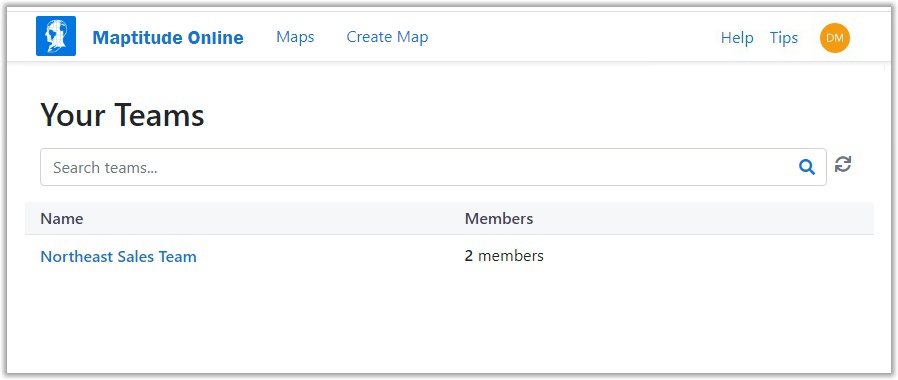
In addition, Administrative users can use the Teams tab to create and manage teams.
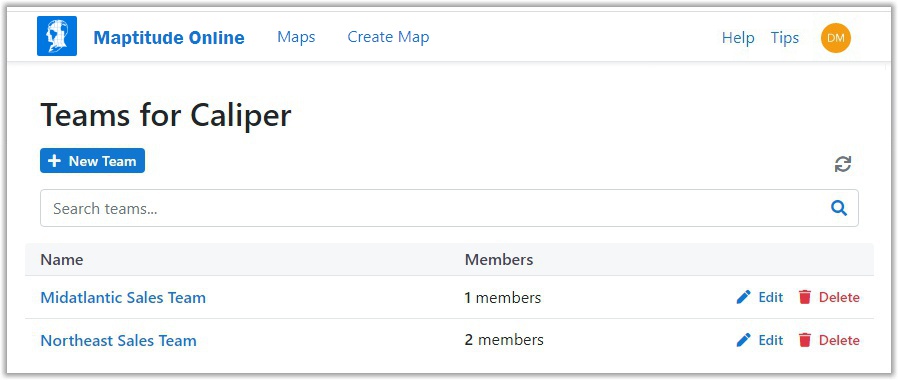
- Choose Teams from the Options and Settings Menu (located at the top right-hand corner of the screen in a drop-down under your user name icon).
- Click New Team.
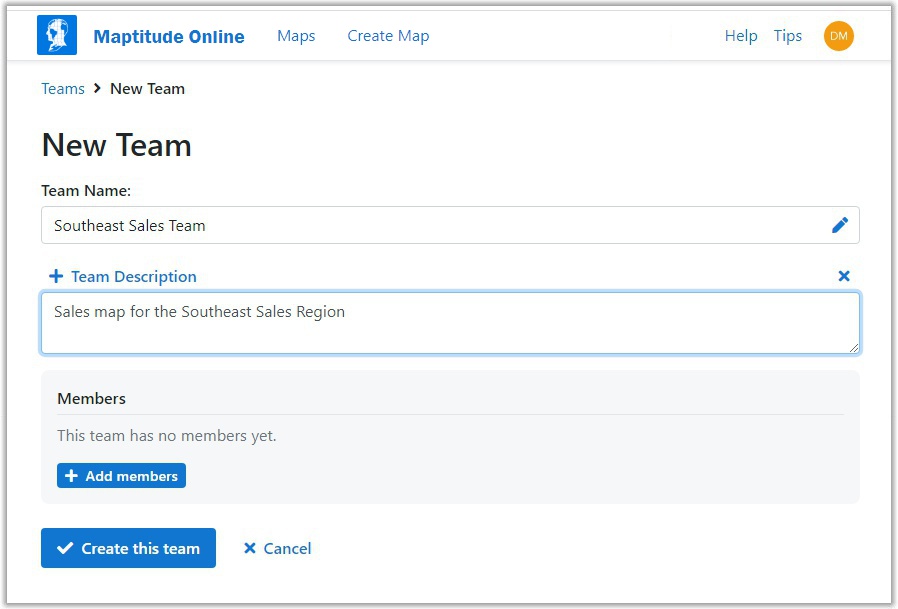
- Enter a name for the new team in the Team name box. You also have the option to click Add a description and enter a description of the team in the Team Description box.
- Click Add members and then click
 next to each user to include in the team.
 - Click Create this team.
- Click Edit next to the team that you want to modify.
- Make changes as follows:
To do this... Do this... Change the name or description Edit the text in the name and/or description boxes. Remove a user Click the name of the user you want to remove from the team or click Add members and uncheck the users you want to remove. Add a user Click Add members and then click next to each user to add to the team. - Click Update this team.
- Click
 Delete next to the team that you want to delete.
 - Click Yes to confirm.
©Copyright Caliper Corporation www.caliper.com • 1172 Beacon St., Suite 300, Newton MA 02461 USA