Maptitude Help / Filters, Queries, and Selection Sets / Copying, Combining, and Transposing Selection Sets
Copying, Combining, and Transposing Selection Sets
Sometimes you want to combine a location question with an attribute question. For example, “Which parcels are near a school and also on residential lots over 1/4 acre?” To answer this kind of question, you can combine two other selection sets.
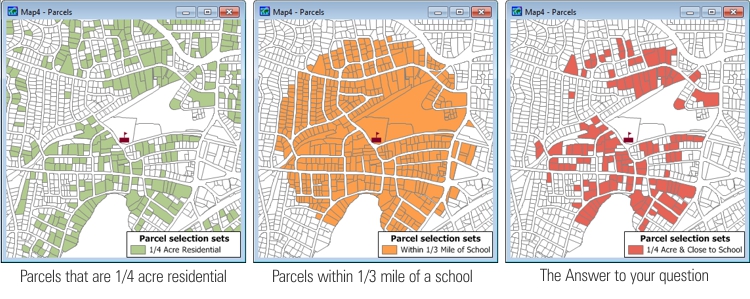
There are four ways of combining selection sets. In the above example, you wanted to find all the tracts that were in both of the other selection sets. In some cases you might want to find the features that are in either of two selection sets. For example, “Which sales territories either increased their sales volume by 15 percent, or sold over $10M worth of goods?” In other cases, you might want to find features that are in either one selection set or the other, but not in both. In the final case, you might want to remove features in one set that are in the other.
Maptitude also gives you two ways of creating a selection set based on the records contained in other sets. You can create a selection set containing all the records that are not in another selection set, or you can create a selection set by copying the records in another selection set.
 |
For a video tutorial see: (Internet connection required) • Working with Maptitude Selection Sets: Using the selection tools, selecting by location, selecting by attribute, combining selection sets, and computing statistics |
 To Copy, Combine, or Transpose Selection Sets
- Choose Selection>Combine Selection to display the Combine Selection dialog box.
- Choose the method you want to use from the By drop-down list:
| Method... | What it does... |
|---|---|
| Copying | Selects features that are in an input selection set |
| Choosing all features | Selects all features in a layer |
| Choosing features not in | Selects features that are not in an input selection set |
| Choose features in both | Selects features that are in both of the two input selection sets |
| Choose features in either | Selects features that are in either of the two input selection sets |
| Choose features in one | Selects features that are in only one of the two input selection sets |
| Removing features in | Removes features from an input selection set that are in another input selection set |
- Choose the input selection set(s) you want to combine from the Set drop-down list and the And/Or or From drop-down lists.
- Type a name or edit the suggested name for the new selection set in the Create Set box.
- Click OK.
Maptitude selects the features, and highlights the result on the map or in the dataview.
Try It Yourself: Combining Selection Sets
1. Choose File>Open Workspace or click  on the Standard toolbar, then open the HighValue workspace in the Tutorial folder. There is already a selection set, Value>30000. You want to see the parcels within a 0.1 mile radius that have land values over $30,000.
2. Verify that the Nearby selection set is displayed in the Current Selection drop-down list on the Standard toolbar. This will be the selection set that you will modify.
3. Click  in the Selection Management drop-down on the Standard toolbar, choose the Allow Sets to Overlap option, and click OK.
4. Click  in the Selection Tools drop-down on the Standard toolbar to activate the Select by Circle tool and click on the map near the center. Maptitude displays the Enter Selection Radius dialog box.
5. Type “0.1” in the Radius box and click OK. Parcels within 0.1 miles are added to the Nearby selection set.
6. Choose Selection>Combine Selection to display the Combine Selection dialog box.
7. Choose Choosing Features in Both from the By drop-down list, Value>30000 from the Set drop-down list, and Nearby from the And/Or drop-down list.
8. Click OK. Maptitude creates a new selection set of parcels that are both within the selection circle and have land values over $30,000.
9. Choose Selection>Settings or click  in the Selection Management drop-down on the Standard toolbar to display the Selection Sets dialog box.
10. Click on Selection and drag to Nearby in the scroll list to highlight three selection sets, then click Status to make the sets inactive.
11. Click Close. Just the new selection set of nearby parcels with a value over $30,000 is highlighted.
12. Choose File>Close Workspace and click Don't Save to close the workspace without saving any changes.
©2026 Caliper Corporation