Maptitude Help / Filters, Queries, and Selection Sets / Creating Selection Sets from a Theme
Creating Selection Sets from a Theme
Maptitude allows you to create several selection sets in a single step by converting a color or pattern theme to a group of selection sets. You may want to convert a theme to selection sets for any number of reasons, for example:
- You want to set different label styles for sales districts where revenue declined
- You want to classify clients by type (active, prospect, etc.) and display each group separately in a dataview
When you convert a theme to a group of selection sets, a selection set is created for each class in the theme. The color and style settings for each class are automatically copied to the selection set, and the original theme is removed. Note that in most cases the map will look exactly the same. However, you can now modify the display settings, labeling, and other attributes of each class independently.
 To Create Selection Sets from a Theme
- Create a color or pattern theme with two or more classes.
- Choose Selection>Select by Theme to display the Select by Theme dialog box.
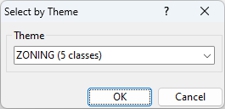
- Choose the theme to use to create selection sets from the Theme drop-down list.
- Click OK. Maptitude asks you to confirm that you want to create the sets.
- Click Yes.
Maptitude creates one selection set for each class in the theme.
©2026 Caliper Corporation