Maptitude Help / Creating and Using Layouts / Enhancing Your Layout
Enhancing Your Layout
There are several ways you can make your layout more attractive. You can add borders to your maps, figures, and dataviews, and add shadows to those borders. You can also change the font styles of a dataview, and you can change the font style of, edit, and add frames to freehand text.
Normally when a map is added to a layout, a snapshot of the map is displayed on the layout. The advantage to this is that you do not have to wait for the map to redraw every time you change the layout scale. You can, however, choose to have the map redraw every time you change the layout scale if you require a more precise view of the layout.
 To Add Borders and Shadows to Maps, Figures, and Dataviews
- Right-click on the map, figure, or dataview, and choose Properties. Maptitude displays the appropriate dialog box for the item you are enhancing.
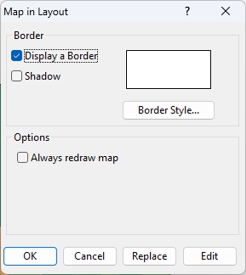
- Check the Display a Border box to show a border around the map. Click Border Style if you want to change the border width, style, or color.
- Check the Shadow box to add a drop shadow to the map.
- Check the Always redraw map box to redraw the map for a higher resolution view of the layout or leave unchecked to draw the layout more quickly with a low-resolution image.
- Click OK.
Maptitude displays the item with the new settings.
To Change the Font Styles in a Dataview
- Right-click and choose Properties. Maptitude displays the Dataview in Layout dialog box.
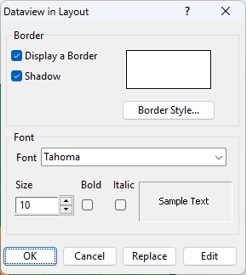
- Check the Display a Border box to show a border around the dataview. Click Border Style if you want to change the border width, style, or color.
- Check the Shadow box to add a drop shadow to the dataview.
- In the Font frame, choose a font, size, and style.
- Click OK.
Maptitude updates the dataview with the new settings.
 |
NOTE: If you resize the dataview with the Pointer tool, the size of text will also change. |
To Enhance Freehand Text
- Click
 on the Standard toolbar to activate the Pointer tool, select the freehand text you want to enhance and double-click on the text. Maptitude displays the Freehand Text dialog box.
— OR —
Right-click on the freehand text and choose Properties. Maptitude displays the Freehand Text dialog box.
- On the Text tab, edit the text and in the Font frame, choose a font, size, style, and opacity.
- Click the Frames tab to display the Frames page and make changes as follows:
| To do this... | Do this... |
|---|---|
| Add or edit a frame | Click Frames and adjust the frame settings to set the shape, style, and color. Check the Shadow box to add a drop shadow to a rectangular frame. |
| Add or edit a shield | Click Shields and choose a shield style. |
| Remove a shield or frame | Click No Frames. |
- Click OK.
Maptitude draws your freehand text with the new settings.
©2026 Caliper Corporation