Maptitude Help / Creating Maps / Locating Geographic and Other Data Files
Locating Geographic and Other Data Files
In order to display a map, Maptitude needs access to map data that are stored in geographic files. When you save a workspace to an uncompressed .WRK file, that file contains a list of all the geographic files that Maptitude needs to use when it comes time to draw the map, layout, or workspace. If you are using a compressed .WRKZ workspace, all of the necessary files will be embedded in the workspace file and therefore none of the following will apply.
Sometimes you may delete, move, or rename geographic files. Here are some possibilities:
- You copied some geographic files from one hard drive to another to free up some space
- You reorganized your geographic files into a new set of folders
- You copied one or more geographic files to a network drive so that you could share them with other Maptitude users
When you open a map, layout, or workspace, Maptitude looks for the geographic and other files in the place where they were stored when the map, layout, or workspace was saved. If you have deleted or renamed one or more of these files, Maptitude will not be able to find them. If you have moved them, Maptitude will try several things when a file it needs is not found:
- Look in the folder where the map, layout, or workspace was originally saved to see if it contains the file
- Look in the folder where you opened the map, layout, or workspace to see if it contains the file
- Look through all the folders in your search path to see if the file is located in any of those locations
- Display a dialog box that asks you where the file can be found
Maptitude may be able to find a geographic file, but the layer name has changed. When a layer is not found, Maptitude gives you several ways to proceed.
Search Paths
The search path is a list of the names of folders that store geographic and other data files. The search path is automatically used every time you start Maptitude. The search path can point to any combination of local and network drives. When you enter a search path, you list all of the folders you want to search, with semicolons separating them. Here are some sample search paths:
- c:\ccdata
- c:\ccdata;e:\
- c:\ccdata;c:\ccdata\international;c:\ccdata\streets;e:\
- c:\ccdata;d:\cdf;h:\shared\data;h:\shared\images
 To Set or Change the Search Path
- Choose Edit>Preferences to display the User Preferences dialog box.
- Click the System tab.
- Type a search path in the Search Path text box.
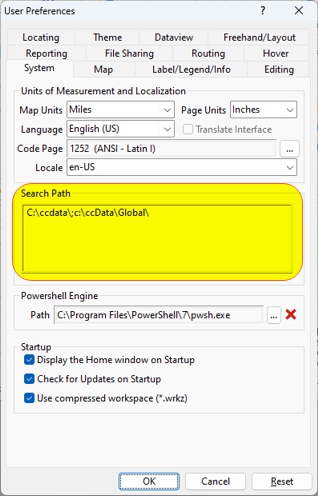
- Click OK.
From now on, Maptitude will search all of the folders in your search path when it needs to locate a geographic or other data file.
File Not Found
When Maptitude cannot locate a file it needs, even after searching the folders in your search path, it asks for your help by displaying the File Not Found dialog box. When this occurs, you can do one of several things:
- Type the name of the folder in which the file can be found
- Browse through your local and network drives to see if you can locate the file
- Try to continue without the missing file
- Cancel the operation in progress
To Locate a Missing File
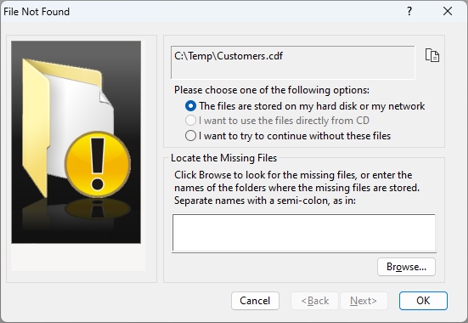
- Choose an option for proceeding from the table below:
| To do this... | Do this... |
|---|---|
| Locate the files on your hard disk or network | Choose the first option from the radio list, type the location in the Locate the Missing Files text box or browse for the files, and click OK. |
| Use files directly from disc | Choose the second option from the radio list, place the disc that contains the missing files into your CD/DVD drive, and click OK. |
| Skip the missing files | Choose the third option from the radio list and click OK. Maptitude creates a map without the missing layer. |
In some circumstances, if the File Not Found dialog box appears, you cannot skip the missing files. For example, if you want to find a particular ZIP Code, Maptitude must be able to find the ZIP Code files. In this case the options available are:
| To do this... | Do this... |
|---|---|
| Locate the files on your hard disk or network | Choose the first option from the radio list, type the location in the Locate the Missing Files text box or browse for the files, and click OK. |
| Use files directly from disc | Choose the second option from the radio list, place the disc that contains the missing files into your CD/DVD drive, and click OK. |
| Cancel the operation | Choose the third option from the radio list and click OK. |
Layer Not Found
When Maptitude locates a geographic file it needs but the layer name has changed, it asks for your help by displaying the Layer Not Found dialog box. When this occurs, you can do one of several things:
- Choose a layer in the geographic file
- Cancel the operation in progress
To Locate a Missing Layer
- When Maptitude locates a geographic file it needs but the layer name has changed, it displays the Layer Not Found dialog box.
- Choose an option for proceeding from the table below:
| To do this... | Do this... |
|---|---|
| Choose a layer | Click the first radio button, highlight the correct layer in the scroll list, and click OK |
| Cancel the operation | Click the second radio button and click OK |
©2026 Caliper Corporation