Maptitude Help / Moving Around a Map / Saving and Using Bookmarks
Saving and Using Bookmarks
If you find that you often use one or more map extents, such as a sales territory or service region, you can save them by creating bookmarks. With a bookmark you can quickly redisplay that extent on any map.
The Bookmark Manager lets you manage your bookmarks. You can rearrange your bookmarks into the order that you want them to appear in the Map>Zoom>Bookmarks list. Maptitude also remembers and displays the eight most-recently-used bookmarks at the bottom of the Map>Zoom>Bookmarks submenu.
You can share bookmarks by exporting bookmarks to a file to give to others, and by importing bookmarks from files that you have gotten from others. If you import a bookmark that has the same name as an existing bookmark, the imported bookmark will be renamed with a suffix such as ":1."

- Choose Map>Zoom>Bookmarks>Create or right-click on a map and choose Create Bookmark to display the Create Bookmark dialog box.
- Make choices as follows:
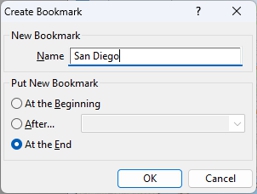
| To do this... | Do this... |
|---|---|
| Name the bookmark | Enter a name in the Name box |
| Choose where to put the bookmark in the list of bookmarks | Choose an option from the radio list |
- Click OK.
Maptitude saves the extent of the current map as a bookmark, and adds it to the list of bookmarks.
- Make sure you have a map open.
- Choose Map>Zoom>Bookmarks>Go To and choose a bookmark, or choose a bookmark from the most-recently-used list at the bottom of the Map>Zoom>Bookmarks submenu.
Maptitude zooms your map to the chosen bookmark. If you have checked Adjust Map Width and Height in the Bookmark Manager dialog box, Maptitude will resize the map window to the size of the bookmark.
 |
TIP: You can also zoom to a bookmark by choosing the bookmark in the Bookmark Manager and clicking Apply. |
- Choose Map>Zoom>Bookmarks>Manager or right-click on the map and choose Bookmark Manager to display the Bookmark Manager dialog box.
- Make changes as follows:
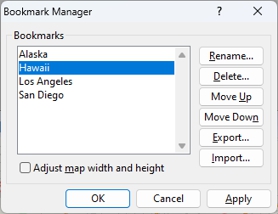
| To do this... | Do this... |
|---|---|
| Zoom to a bookmark | Choose a bookmark from the list and click Apply |
| Zoom to an exact bookmark | Choose a bookmark from the list, check the Adjust map width and height box and click Apply |
| Rename a bookmark | Click Rename, enter a new name, and click OK |
| Delete a bookmark | Choose a bookmark from the list and click Delete and click Yes to confirm |
| Rearrange bookmarks | Highlight one or more bookmarks in the list and click Move Up or Move Down |
- Click OK to save your changes.
If you clicked Apply before clicking OK, Maptitude leaves the map at the extent of the bookmark. If you click Cancel then all of your changes, including applying a bookmark, are canceled.
©2026 Caliper Corporation