Maptitude Help / Moving Around a Map
Moving Around a Map
Unlike a paper map, a Maptitude map lets you change the area that is displayed and switch from one location to another with the click of a mouse. This is one of the major advantages of computerized maps – you can use them to display a neighborhood, a sales territory, a congressional district, or any other location, large or small, that you want to see.
Maptitude includes many tools and commands for changing the map scale and location:
- You can use the Zoom and Pan tools or an overview window to interactively move around a map
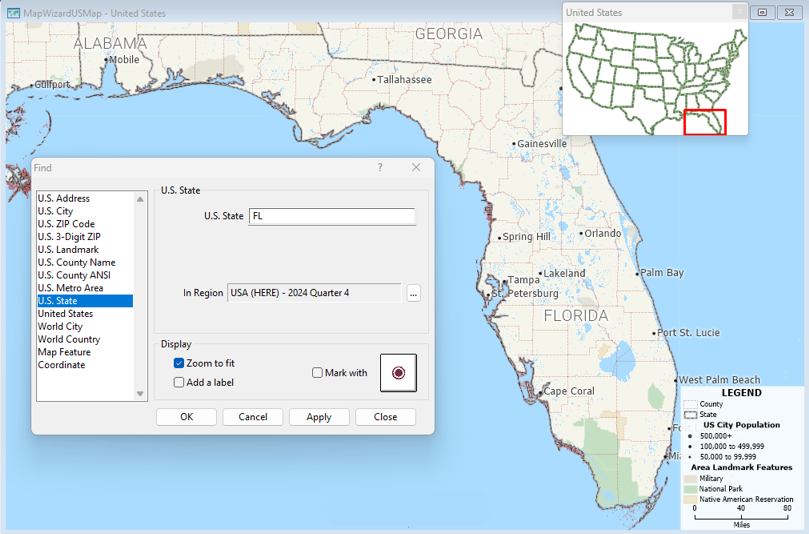
- You can also use the Edit>Find command to find locations based on the region and world geographic files that come standard with Maptitude, based on your own data that you have located on a map, based on a value for an attribute, or just find a particular coordinate.
- You can find features from a dataview.
- You can set the scale to a specific value or ratio.
- If your workspace has more than one map in it, you can synchronize the scale of the maps
- You can also save locations that you use frequently to a bookmark.
- You can undo any of your scale changes one at a time or return to the initial scale of the map in your workspace
There are also options for Showing a Subset of Map Features if you want to only display the features in a specific area.
 |
For a video tutorial see: (Internet connection required) • Moving Around a Maptitude Map: Using the Zoom In, Zoom Out, and Pan tools, finding particular locations on a map, and specifying a map scale |
©2026 Caliper Corporation