Maptitude Help / Moving Around a Map / Using the Zoom and Pan Tools
Using the Zoom and Pan Tools
 |
For a video tutorial see: (Internet connection required) • Moving Around a Maptitude Map: Using the Zoom In, Zoom Out, and Pan tools, finding particular locations on a map, and specifying a map scale |
 To Zoom In on a Map (Make the Scale Larger)
- Click
 on the Standard toolbar to activate the Zoom In tool.
 - Click on a location to double the size and make the point at which you clicked the center of the map or drag a rectangle around the part of the map you want to see enlarged.
 |
TIP: If your mouse has a scroll wheel, roll the scroll wheel away from you to zoom in. You can also use the keyboard shortcut Ctrl+ to zoom in. |
To Zoom Out on a Map (Make the Scale Smaller)
- Click
 on the Standard toolbar to activate the Zoom Out tool.
 - Click on a location to halve the size and make the point at which you clicked the center of the map or drag a rectangle around the part of the map into which you want to reduce the current map.
|
TIP: If your mouse has a scroll wheel, roll the scroll wheel toward you to zoom out. You can also use the keyboard shortcut Ctrl- to zoom out. |
 |
NOTE: When you click on a location with the Zoom Out tool, Maptitude halves the scale. To change this zoom factor, choose Edit>Preferences and enter a different value in the Zoom Factor text box on the Map tab. |
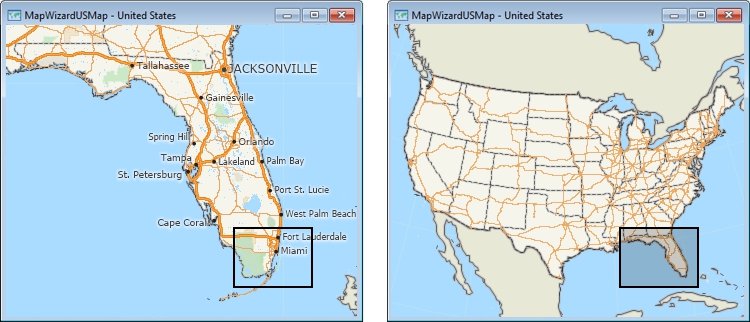
If you dragged a rectangle, Maptitude redraws the map so that the current map extent is reduced to fit into the rectangle. The smaller the rectangle is, the more the map will be zoomed out and the smaller the scale will be. If the rectangle is off to one side of the map, more features will be displayed on the other side of the map. For example, drag a rectangle with the zoom out tool in Southern Florida as shown below left, and Maptitude will zoom out to where the map on the left fits in the rectangle you dragged (right).
To Change the Center of the Map
- Click
 on the Standard toolbar to activate the Pan tool.
 - Position the cursor anywhere on the map and hold down the mouse button.
- Drag the map to a new location and release the mouse button.
— OR —
- Press and hold the Ctrl key while pressing an arrow key.
|
TIP: If your mouse has a scroll wheel, hold the scroll wheel down while dragging the mouse. You can also use the keyboard shortcuts Ctrl ↑, Ctrl ↓, Ctrl ←, and Ctrl → to pan. |
- Choose a layer from the drop-down list on the Standard toolbar.
- Right-click on the map and choose Zoom to Working Layer.
— OR —
- Right-click on the layer in the Display Manager and choose Zoom.
Try It Yourself: Moving Around a Map
1. Choose File>New Workspace or click  on the Standard toolbar, choose New map of {country name}, then use Create-a-Map Wizard to create a map of your country.
2. Click in the Standard toolbar to activate the Zoom In tool, then click anywhere on the map. The map is drawn so that all features are twice as large, and the map in centered at the point you clicked.
3. Drag a rectangle on any part of the map. The map is drawn so that the area in side the rectangle is drawn as large as possible inside the window.
4. Choose Map>Zoom>Undo or click  on the Standard toolbar to restore the map and scale to the scale and center in step 3.
5. Click on the Standard toolbar to activate the Pan tool, then click anywhere on the map, drag it to a new location, and release the mouse button.
6. Click on the Standard toolbar to activate the Zoom Out tool, then click anywhere on the map. The map is drawn so that all features are half as large, and the map is centered at the point you clicked.
7. Choose Map>Zoom>Undo All or click  on the Standard toolbar to restore the map to the original scale.
8. Choose File>Close Workspace and click Don't Save to close the workspace without saving any changes.
©2026 Caliper Corporation