Maptitude Help / Moving Around a Map / Setting the Scale to a Value
Setting the Scale to a Value
The map scale is displayed in the status bar at the bottom of the map window in two formats:
| Method | Meaning |
|---|---|
| Ratio | A scale of 1:1,000 means that every feature on the map is shown at one thousandth of its actual size |
| Miles per Inch | A scale of one inch = 100 miles means that every inch on the map corresponds to 100 miles on the earth |
You can set the scale using either of these formats, or specify the width or height of the map in miles. Maptitude can also choose to set the scale of a map so that it shows all of the features in a particular layer or selection set.
 To Set the Map Scale to a Value
- Choose Map>Zoom>Scale or right-click on the map and choose Scale to display the Map Scale dialog box.
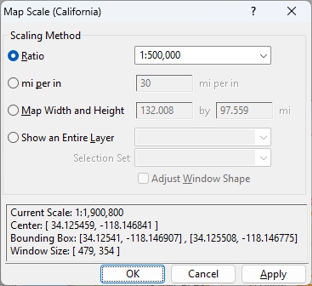
- Choose a method for setting the scale from the scroll list and set the scale value as follows:
| To do this... | Do this... |
|---|---|
| Set the scale to a ratio | Choose ratio from the radio list and choose a ratio from the drop-down list or type a ratio. Note, the "1:" is optional so you can type "1:250000" or "250000" |
| Set the scale to a number of miles per inch (or km per cm depending on the country package that you have installed) | Choose mi per in (or km per cm) from the radio list and type the number of miles or kilometers in the box. |
| Set the map width or height to a specific value | Choose Map Width and Height from the radio list and type the width or height of the map in miles or other units. The other value will be automatically calculated based on the width or height that you enter. |
| Show an entire layer | Choose Show an Entire Layer from the radio list, choose a layer and optionally a selection set from the drop-down lists. Check the Adjust Window Shape to change the shape of the map window to exactly fit the features in the layer or selection set. |
- Click OK.
Maptitude draws the map with the new scale.
 |
NOTE: You can choose to see the map scale in other units. Choose Edit>Preferences and choose the units from the Map Units drop-down list on the System tab. |
Try It Yourself: Setting the Scale of a Map
1. Choose File>New Workspace or click  on the Standard toolbar, choose New map of {country name}, then use Create-a-Map Wizard to create a map of your country.
2. Choose Map>Zoom>Scale to display the Map Scale dialog box.
3. Choose mi per in (or km per cm) from the radio list and type “10.”
4. Click OK to see the map zoomed into the new scale.
5. Choose Map>Zoom>Scale again.
6. Choose Ratio from the radio list and choose “1:10,000,000.”
7. Click OK. Now the map is shown at a much smaller scale.
8. Choose File>Close Workspace and click Don't Save to close the workspace without saving any changes.
©2026 Caliper Corporation