Maptitude Help / Moving Around a Map / Using the Overview Window
Using the Overview Window
The overview window is a tool that lets you see the extent of a map and lets you change its scale and center. Any map window can have its own overview window. When you create an overview window, you choose:
- What layers to show
- What scale to use
- How big it will be
- The color of the rectangle that indicates the map location
The overview window can display a reduced version of the current map, or any geographic file. There are several choices of scale for the overview window, based on which layers are being shown and whether there is an existing overview window. The size of the overview window is based on a percentage of the width of the map window.
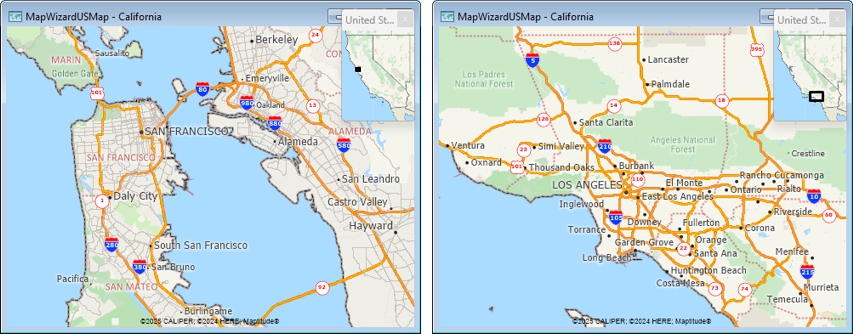
You use the overview window as another way to change the scale and center of the map.
- If you click on the overview window, that point becomes the new map center and the map scale stays the same.
- If you click and drag a rectangle on the overview window, the area inside the rectangle becomes the new map extent, changing the map center and scale.
The map extent is shown by a bold rectangle on the overview window. The rectangle is updated whenever you change the center and scale of the map, such as by using the Zoom In tool, the Undo Scale button, or the Map>Zoom>Scale command. You will not see the rectangle if the edges of the map are beyond the area shown on the overview window.
After an overview window is created for a map, you can change the overview window settings. When you save a map, the overview window settings are also saved. When you open a map, or make it the current map, its overview window is displayed. If a map is not the current map, its overview window is hidden.
 To Create or Modify an Overview Window
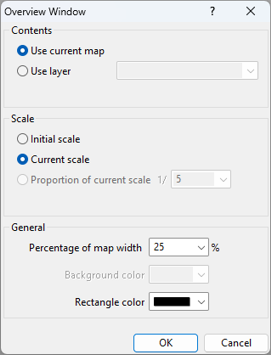
| To do this... | Do this... |
|---|---|
| Use all of the current map layers in the locator | Choose Use current map from the radio list |
| Use one geographic layer in the locator | Choose Use layer from the radio list then choose a layer from the drop-down list or choose File Open to use a layer that is not in the map |
| Set the map locator scale | Choose Initial scale to use the extent of the initial map, choose Current scale to use the current extent in the map, or choose Proportion of current scale to show proportionately more than the current map extent |
| Set the size of the locator | Choose or type a size, relative to the map, from the Percentage of map width editable drop-down list |
| Set a background color for a one-layer locator | Choose a color from the Background color drop-down list |
| Set the color of the rectangle | Choose a color from the Rectangle color drop-down list |
- Click OK.
Maptitude creates the overview window. To remove an overview window, click its Close box in the upper-right corner of the overview window.
To Use the Overview Window to Move Around the Map
- Click on the overview window to change the center of the map, or click and drag a rectangle on the overview window to change the extent of the map.
Maptitude draws the map and updates the bold rectangle in the overview window to show the map extent.
Try It Yourself: Using an Overview Window
1. Choose File>New Workspace or click  on the Standard toolbar, choose New map of {country name}, then use Create-a-Map Wizard to create a map of your country.
2. Choose Map>Zoom>Overview Window to display the Overview Window dialog box.
3. Choose Use Current Map under Contents, Initial Scale under Scale, type “20” in the Percentage of Map Width box, and click OK. Maptitude displays an overview window.
4. Click and drag a rectangle on the overview window. Maptitude redraws the map at the new location.
5. Click at several locations on the overview window. Maptitude recenters the map at every location where you click.
6. Choose File>Close Workspace and click Don't Save to close the workspace without saving any changes.
©2026 Caliper Corporation