Maptitude Help / Using Themes to Present Information / Saving Theme Settings
Saving Theme Settings
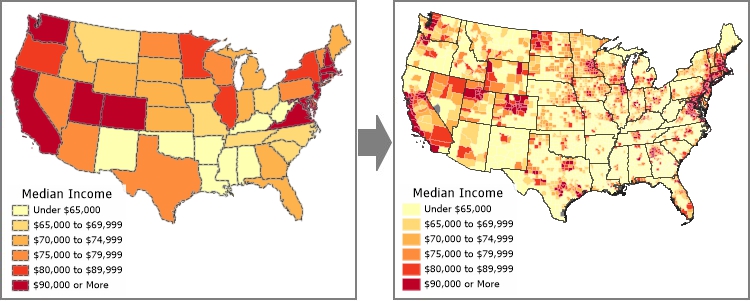
Maptitude lets you save the settings for a theme in a settings file that can then be used to apply the theme to different fields or different layers. For example, if you have a map with a color theme of household income on states, you can quickly apply the same color theme with the same class breaks and colors to another layer, such as counties (as shown below), or to another field, such as mean earnings. You can save the settings for a color, pattern, dot-density, size, or chart theme.
You can also copy the settings from another thematic map in your workspace. For example, if you have a map with a color theme on the county layer, you can copy the settings from that theme to another layer in that map, or any other open map, without needing to first save the settings.
Settings are saved to a settings file. Settings files have the extension .stg.
 |
Color and pattern themes with manual classes that are saved in a settings file can only be loaded from the Manual Theme dialog box. |
 |
NOTE: To set the default settings file, choose Edit>Preferences and click |
 on the Map tab.
 To Copy Theme Settings from Another Map or Layer
- Create or open a map that contains the theme you want to copy.
- Make the map to which you want to apply the theme the active map.
- Choose the layer to which you want to apply the theme from the drop-down list on the Standard toolbar.
- Choose the command or click the button to open the appropriate thematic map dialog box.
- Click Load. Maptitude displays the Load Theme dialog box.
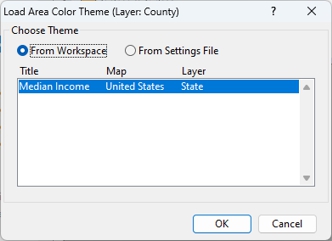
- Click the From Workspace radio button
- Highlight a theme in the scroll list.
- Click OK to close the Load Theme dialog box.
If the layer to which you are adding the theme does not contain the field on which the theme you are copying is based, Maptitude displays the Match Theme Fields dialog box.
The scroll list shows any fields that are used in the theme that are not in the current layer. For each field in the list, choose a corresponding field from the Use Layer Field drop-down list. Once every field has been assigned a matching field click OK to close the Match Theme Fields dialog box.
- Click OK.
Maptitude adds a theme with the same general settings and styles to the chosen layer.
To Save Theme Settings
- Create a thematic map. Set all of the styles and legend text as you would like to have them saved.
- Click Apply to apply the theme to the map. The Save button on the Settings page of the dialog box is enabled. If you are not on the Settings page, click the Settings tab.
- Click Save. Maptitude displays the Save Theme dialog box.
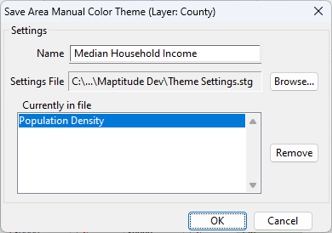
- Type a name for the theme in the Name box.
- Click OK to return to the respective theme dialog box and click OK.
Maptitude saves the theme to the settings file.
To Apply Saved Theme Settings to a Map
- Choose the layer to which you want to apply a theme from the drop-down list on the Standard toolbar.
- Choose the command or click the button to open the appropriate thematic map dialog box.
- Load a theme as follows:
| For this type of theme... | Do this... |
|---|---|
| Color, pattern, dot-density, chart, or size | Click Load. |
| Color or pattern theme with manual classes | Choose the field to which you want to apply the theme from the Field drop-down list in the Color Theme or Pattern Theme dialog box and click Manual. Maptitude displays the Manual theme dialog box. Click Load. |
Maptitude displays the Load Theme dialog box.
- Click the From Settings File radio button. All of the appropriate saved themes are listed in the scroll list.
- Highlight a theme in the scroll list.
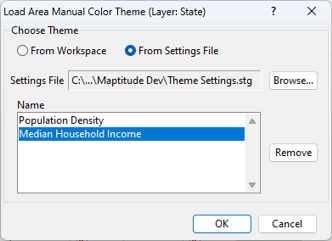
- Click OK. Maptitude closes the Load Theme dialog box.
If the layer does not contain the field on which the theme you are copying is based, Maptitude displays the Match Theme Fields dialog box. For each field in the list, choose a corresponding field from the Use Layer Field drop-down list. Once every field has been assigned a matching field click OK to close the Match Theme Fields dialog box.
If you are using a theme that contains manual class settings, and you have chosen a field other than the one used when the theme settings were saved, Maptitude displays a confirmation dialog box. Click Yes to apply the theme class and style settings to the chosen field.
- Click OK.
Maptitude adds the theme to the chosen layer.
To Remove Themes from the Settings File
- Choose the command or click the button to open the appropriate thematic map dialog box.
- Click Load to display the Load Theme dialog box and click the From Settings File radio button or click Save to display the Save Theme dialog box.
- Highlight the theme you want to delete in the scroll list.
- Click Remove. Maptitude displays a Confirm dialog box.
- Click Yes. Maptitude removes the chosen settings from the settings file.
- Click OK to close the Load Theme or Save Theme dialog box.
- Click Cancel.
Maptitude closes the thematic map dialog box.
©2026 Caliper Corporation