Maptitude Help / Creating and Using Layouts / Using the Rulers and the Snap Grid
Using the Rulers and the Snap Grid
The rulers and the snap grid help you position items in exact locations on the page. The rulers are displayed across the top and down the left edge of the layout; they show the exact dimensions of the layout. The snap grid is a series of dots and crosses that appear throughout the layout. When you display rulers and the snap grid, you can choose to use inches, centimeters, or other units. You can also choose the interval of the grid points.
You can choose to enable or disable snapping of layout items to the snap grid. If snapping is enabled, the following things occur:
- When you move any layout item, Maptitude places the item so that the upper-left corner is positioned at the nearest grid point.
- When you resize any layout item, Maptitude adjusts the corner or edge you move so that it is positioned at the nearest grid point.
 To Set Up the Rulers and Snap Grid
- Click
 Options in the Layout Options drop-down on the Standard toolbar, or right-click anywhere on a layout except on an item and choose Options. Maptitude displays the Layout Options dialog box.
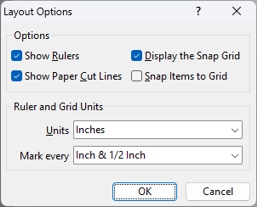
- Choose the units to use from the Units drop-down list.
- Choose the interval for grid points from the Mark every drop-down list.
- Check the respective boxes if you want to show the rulers or snap grid on the layout.
- Click OK.
To Display or Hide Rulers Along the Top and Left Edges
 Hide or Show Rulers in the Layout Options drop-down on the Standard toolbar.
—OR—
- Click Options in the Layout Options drop-down on the Standard toolbar or right-click anywhere on a layout except on an item and choose Options. Maptitude displays the Layout Options dialog box.
- Check the Show Rulers box to display the rulers, or clear the box to hide the rulers.
- Click OK.
To Show or Hide the Snap Grid for Positioning Items
 Hide or Show the Snap Grid in the Layout Options drop-down on the Standard toolbar.
—OR—
- Click Options in the Layout Options drop-down on the Standard toolbar or right-click anywhere on a layout except on an item and choose Options. Maptitude displays the Layout Options dialog box.
- Check the Display the Snap Grid box to display the grid, or clear the box to hide the grid.
- Click OK.
- Click
 Turn Snapping On or Off in the Layout Options drop-down on the Standard toolbar.
—OR—
- Click Options in the Layout Options drop-down on the Standard toolbar or right-click anywhere on a layout except on an item and choose Options. Maptitude displays the Layout Options dialog box.
- Check the Display the Snap Grid box and the Snap Items to Grid box.
- Click OK.
Paper Cut Lines
If you want to create a layout that is larger than a page size supported by your printer, you can choose to have the layout span across and down any number of pages. After printing the pages, you can paste them together to get the complete layout.
When your layout is made up of more than one page across and/or down, you can choose to display paper cut lines in your layout to show where objects are placed in relation to how the pages are printed.
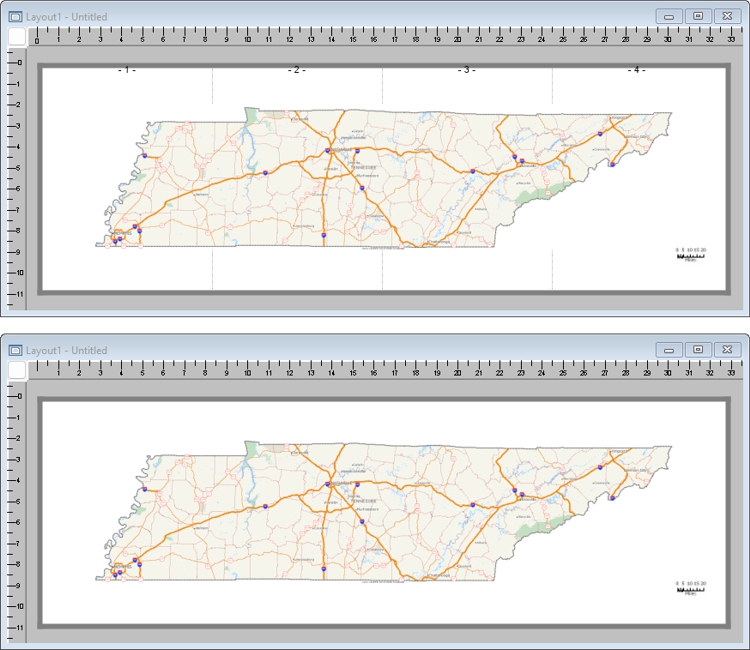
A 4-page wide layout with paper cut lines (top) and without (bottom)
- Click
 Hide or Show Cut Lines in the Layout Options drop-down on the Standard toolbar.
—OR—
- Click Options in the Layout Options drop-down on the Standard toolbar or right-click anywhere on a layout except on an item and choose Options. Maptitude displays the Layout Options dialog box.
- Check the Show Paper Cut Lines box.
- Click OK.
Maptitude displays paper cut lines in your layout.
©2026 Caliper Corporation