Maptitude Help / Tutorial / Finding a Route
Stage 4: Finding a Route
Suppose you want to visit each of the largest customers. You can use the Routing & Directions Manager to determine a route that minimizes the time you spend driving from customer to customer.
 To Find a Route
- Choose Tools>Routing and Directions>Routing and Directions Manager or click
 Routing Manager in the analysis tools drop-down (
 ) on the Standard toolbar to display the Create or Open a Route dialog box.
 - Choose Create a New Route from the radio list and click OK. If Maptitude displays a Note dialog box, click OK. Maptitude displays the Routing & Directions Manager.
- Click
 and click anywhere on the map for your starting location.
 - Click
 to display the Add Stops dialog box.
 - Verify that the customer layer is chosen in the Layer drop-down list, choose Selection from the Features drop-down list, and choose [Customer Name] from the Stop Name drop-down list.
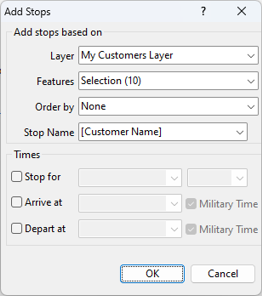
- Click OK to add your customer locations as stops in the Routing and Directions Manager.
- Right-click on the first stop in the list and choose Choose as End to find a route that returns to your starting location. Click Yes to confirm that you also want to use the starting location as the ending stop on your route.
- Click Optimize. Maptitude determines the best route to visit the customers starting at the location that you chose and shows the route on the map and in the Routing & Directions Manager.
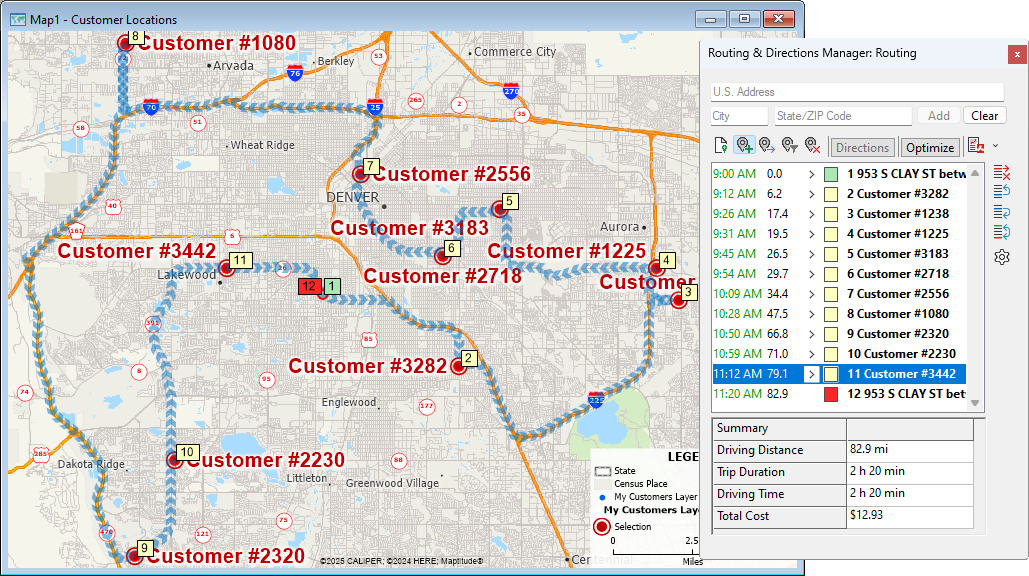
If you want, you could click one of the PDF export options to create a PDF report with the directions for visiting your customers that you could use in your meeting. For now, however, let’s just close the Routing & Directions Manager and clear the route from the map.
- Choose Tools>Routing and Directions>Routing and Directions Manager or click Routing Manager again to close the Routing & Directions Manager.
See Routing, Directions, and GPS if you want to learn more about routing and drive-time ring analysis.
Now let's move on to Stage 5: Adding Distance Buffers to the Map.
©2026 Caliper Corporation