Maptitude Help / Tutorial
Tutorial
Now that you have learned some of the basics, let’s work through a sample project that will give you some hands-on experience in creating and using maps. In this chapter, you will create the layout shown below and, in the process, practice using some of the most important features of Maptitude.
To do the tutorial, you must have installed the geographic data that come with Maptitude to a folder on your computer.
The Project
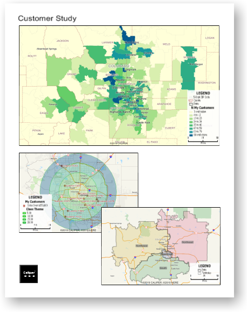 It is late morning and you have to make a sales presentation for the lunchtime staff meeting. You have an Excel spreadsheet that contains data about your customers including their addresses, the volume of sales, and the sales territory to which they belong. You are going to use Maptitude to analyze your sales data and present your findings. You will do this analysis in the following stages:
- Create an overview map of customer data by postal code to show where your customers are concentrated
- Create a map that shows where your customers are located
- Identify your best customers based on sales and proximity
- Find a route for efficiently visiting your best customers
- Show the proximity of your best customers to your location
- Display data for your customers of interest
- Modify your sales territories to make them more balanced
- Allocate your customers to the new territories
- Create and print a layout that illustrates your findings
Along the way, you will learn many Maptitude basics such as changing the contents of a map, moving around a map, filtering records on a map, changing how features appear on a map, labeling features on a map, working with dataviews, and exporting results to Excel.
Let’s begin with Stage 1: Using Your Data in a Map.
Topics in this section:
Stage 1: Using Your Data in a Map
Stage 2: Locating Your Customers on a Map
Stage 3: Selecting Customers of Interest
Stage 4: Finding a Route
Stage 5: Adding Distance Buffers to the Map
Stage 6: Displaying Data for Customers of Interest
Stage 7: Creating and Modifying Territories
Stage 8: Updating The Customer Data
©2026 Caliper Corporation