Maptitude Help / Filters, Queries, and Selection Sets / Selection Set Basics
Selection Set Basics
When you use the selection tools or commands, the results are normally placed in a selection set named “Selection.” However, you are not limited to a single selection set. In fact, Maptitude lets you create any number of selection sets for each layer or dataview, and give each one a distinctive name. You can choose which selection set to use when using any of the selection tools or commands and you can choose whether to allow selection sets to overlap.
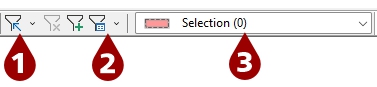
You use the Selection menu commands, the tools in the Selection Tools drop-down (1) on the Standard toolbar, the tools in the Selection Management drop-down (2) on the Standard toolbar, the Current Selection drop-down list (3), and the Selection Sets dialog box to create, maintain, and delete selection sets.
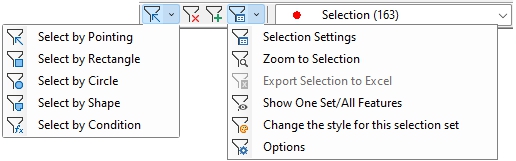
- Choose a Selection Set to Use with the Selection Tools
- Pick tools to select features directly from a map
- Clear a selection set
- Create an empty new selection set
- Select features based on a condition
- Change the appearance of features in a selection set
- Zoom to a selection set
- Display only features that are in selection sets
- Open the Selection Sets dialog box
You use the Selection Sets dialog box to:
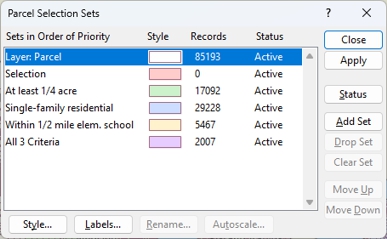
- To Create an empty new selection set
- Rename a selection set
- Clear a selection set
- Rearrange selection sets
- Delete selection sets
- Change the display status of selection sets
- Change the appearance of features in a selection set
- Autoscale and clear autoscale from a selection set
- Change the labels of features in a selection set
Optional tools allow you to:
 To Choose a Selection Set to Use with the Selection Tools
- Choose the selection set you want to use from the Current Selection drop-down list on the Standard toolbar.
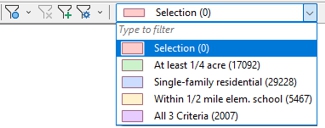
From now on, the selection tools will work on the chosen selection set.
- Click
 on the Standard toolbar. Maptitude displays the New Selection Set dialog box.
 - Enter a name for the new selection set and click OK.
— OR —
- Choose Selection>Settings, or click
 in the Selection Management drop-down on the Standard toolbar to display the Selection Sets dialog box.
 - Click Add Set. Maptitude displays the New Selection Set dialog box.
- Enter a name for the new selection set and click OK.
- Choose Selection>Settings, or click in the Selection Management drop-down on the Standard toolbar to display the Selection Sets dialog box.
- Choose the selection set you want to rename from the scroll list.
- Click Rename to display the Rename Selection Set dialog box.
- Type a new name in the New Name text box.
- Click OK. Maptitude renames the selection set and updates the map legend accordingly. You cannot rename the selection set named “Selection.”
- Click Close to close the Selection Sets dialog box.
 |
TIP: You can also display the Rename Selection Set dialog box by right-clicking on a selection set in the Display Manager and choosing Rename. |
- Choose the set you want to clear from the Current Selection drop-down list on the Standard toolbar.
- Click
 on the Standard toolbar.
— OR —
- Choose Selection>Settings, or click in the Selection Management drop-down on the Standard toolbar to display the Selection Sets dialog box.
- Choose one or more selection sets to clear from the scroll list.
- Click Clear Set.
If you choose more than one selection set, Maptitude displays a Confirm dialog box. Click Yes.
Maptitude clears the selection set or sets and updates the number of records.
- Click Close to close the Selection Sets dialog box.
|
TIP: You can also delete a selection set by right-clicking on a selection set in the Display Manager and choosing Remove. |
To Rearrange or Delete Selection Sets
- Choose Selection>Settings, or click in the Selection Management drop-down on the Standard toolbar to display the Selection Sets dialog box.
- Choose one or more selection sets to move from the scroll list.
- Make choices as follows:
| To do this... | Do this... |
|---|---|
| Rearrange the order of sets | Click Move Up or Move Down. When a map feature is in more than one selection set, selection sets later in the list have priority over selection sets earlier in the list when Maptitude determines the style and label for that map feature. The selection set named “Selection” cannot be moved. |
| Delete the sets | Click Drop Set. Click Yes when Maptitude asks you to confirm that you want to drop the selection set. |
- Click Close to close the Selection Sets dialog box.
©2026 Caliper Corporation