Maptitude Help / Using Themes to Present Information / About Map Themes
About Map Themes
Thematic maps illustrate the characteristics of map features so that the characteristics are easy to see and understand. A map theme is a styling of map features according to the values of one or more data fields.
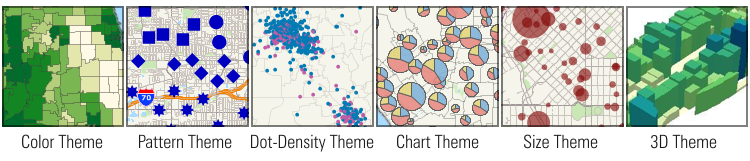
Maptitude has six theme types:
- Color themes
- Pattern/Multiple Symbol themes
- Dot-density themes
- Pie and bar chart themes
- Size themes
- 3D themes
You create themes on a single map layer. A map can show any number of themes, and can even combine several types of themes on a single layer such as a sales territory layer with a color theme of total annual sales and a chart theme showing sales by quarter.
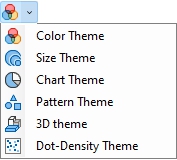
You choose a theme either with the Map>Thematic Mapping command menu or using the thematic mapping drop-down on the Standard toolbar:
Deciding Which Type of Theme to Use
You choose the theme you want based on the number of fields of data you want to show and the types of data you wish to present:
- Most theme types can be used with any point, line, and area layer.
- Dot-density themes and 3D themes, however, can only be used with area layers.
- To illustrate the values of two or more fields, choose either a chart theme or a dot-density theme.
- To illustrate the values of a single field, you can choose from all of the theme types, using the following guidelines:
| If your data contain... | For example... | Then you should... |
|---|---|---|
| Counts or amounts | Population, Sales | Use any kind of theme |
| Percentages, ratios, or averages | Mean Income, Percent Hispanic | Avoid dot-density themes |
| Negative numbers | Change in Population | Use color or pattern/symbol themes |
| Non-numeric information | Zoning, Sales Territory | Use color or pattern/symbol themes |
MapWizard®
Maptitude offers unique MapWizard instant mapping technology that looks over the data for a map layer and designs the theme to communicate the information most effectively.
You use MapWizard instant mapping by clicking on one of the MapWizard buttons on the Standard toolbar or by choosing one of the commands that create a theme. All you need to do is choose the type of theme you want to use and the field or fields you want to see. Maptitude reviews the data, creates the theme, and chooses colors, styles, and patterns that make your map clear and attractive.
Once you create a theme using MapWizard, you can change or customize the theme settings in any way you like. If you’d like to preview how the theme will look, just click the Apply button at the bottom of the Theme dialog box. If you like the way the theme looks, click OK; if not, click Cancel.
©2026 Caliper Corporation