Maptitude Help / Creating Maps / Saving, Closing, and Opening Workspaces
Saving, Closing, and Opening Workspaces
Workspaces are where you display one or more map, dataview, chart, or layout windows. When you save your workspace, all of the open windows will be saved, and if you close and reopen the workspace, all of the windows are restored. Workspace files can be either compressed (.WRKZ) or uncompressed (.WRK). For more information on workspace files see Workspaces.
You can only have one workspace open at a time. If you try to open a second workspace, Maptitude will prompt you to choose whether to close the first workspace or merge the contents of the second workspace into the workspace with which you are working.
If you try to open a workspace that is already open by another user or is located in a read-only location, Maptitude will give you the option to open a copy of the workspace. You will need to use the File>Save Workspace As command to save any work you do with the copied workspace.
When you close a workspace or exit the program, Maptitude alerts you if the workspace has changed since you opened it and asks if you want to save it in its current form. Similarly, when you close a window in a workspace, Maptitude asks you to confirm that you want to remove it from the workspace.
Maptitude also has an Autosave option to periodically create temporary backup files to help protect you from accidentally changing a workspace.
- Choose File>Save Workspace or click
 on the Standard toolbar.
Maptitude saves any changes to the open windows on your screen.
 To Save a Workspace with a New Name
- Choose File>Save Workspace As or right-click anywhere inside the Maptitude frame except on a window and choose Save Workspace As.
- Type a name for the workspace file, and click Save.
Maptitude saves information about all of the open windows on your screen in a workspace.
To Convert an Uncompressed Workspace to a Compressed Workspace
- Open an uncompressed (.WRK) workspace file.
- Choose File>Save Workspace As or right-click anywhere inside the Maptitude frame except on a window and choose Save Workspace As.
- Choose Workspace - Compressed as the file type.
- Type a name for the workspace file, and click Save.
Maptitude saves information about all of the open windows on your screen and embeds any standard (.DBD) geographic files that are part of your workspace into the compressed (.WRKZ) workspace file.
 |
NOTE: You can convert a compressed .WRKZ workspace to an uncompressed .WRK file using the same method provided that there are no embedded layers within the WRKZ file. Compressed workspace files are the recommended workspace file to use. |
- Choose File>Open Workspace or right-click anywhere inside the Maptitude frame except on a window and choose Open Workspace. Maptitude displays the File Open dialog box with Workspace as the file type.
— OR —
Choose File>Open or click  on the Standard toolbar to display the File Open dialog box and choose Workspace from the Files of Type drop-down list.
- Choose a workspace file from the list.
- Click Open.
Maptitude displays all the windows in your workspace on the screen.
|
NOTE: You can only have one workspace open at a time. If you already have a workspace open, Maptitude will prompt you to choose whether to close the current workspace or merge the contents of the workspace that you are opening into the workspace with which you are working. You cannot merge a compressed (.WRKZ) workspace into an open standard (.WRK) workspace. |
 |
TIP: You can quickly open recently used workspaces by choosing File>Recent Files and choosing the workspace from the submenu. |
- Choose File>Close Workspace or right-click anywhere inside the Maptitude frame except on a window and choose Close Workspace.
Maptitude closes all of the windows in the workspace. If any windows have changed and not been saved, Maptitude displays the Save Your Changes dialog box. Choose whether or not to save changes to the workspace.
To Close a Window and Remove it from a Workspace
- Click the close box in the upper right corner of the map, dataview, layout, or chart window. Maptitude displays the Keep or Remove dialog box.
- Click Remove.
Maptitude closes the window.
Managing Workspaces
You can see information about your workspace and manage the contents of your workspace using the File>Properties command.
To See the Workspace Properties
- Choose File>Properties or click
 on the Standard toolbar to display the Workspace Properties dialog box. The top portion shows information about the workspace file and the bottom portion shows information about the windows open in your workspace.
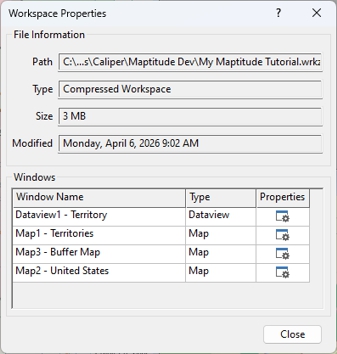
You can click  in the Properties column to open the properties dialog box for the chosen window type. For maps, this allows you to set map background, projection, and legend display. For dataviews, you can choose style and title. For layouts, you can set page size, orientation, and margins. For 3D themes, you can set the title, display, scale, size, and colors. For 3D maps, you can set appearance, background, and lighting. For more information see Style of the Map Background, About Map Projections, Using Legends, Changing the Way the Dataview Looks, Creating Layouts, Creating a 3D Theme, and Working with Three-Dimensional Maps. You cannot modify chart properties from the Workspace Properties dialog box.
- Click Close when you are done.
Autosave
Maptitude has an Autosave option that will periodically save a backup of your workspace. The Autosave option may help you recover changes to your workspace in the event of your computer accidentally losing power. You may also be able to recover a window in your workspace that you accidentally close, or changes to a workspace that you accidentally forgot to save.
|
NOTE: Autosave is not a replacement for saving your workspace frequently, which is the only guaranteed way of retaining an up-to-date copy of your work. |
|
NOTE: To enable or disable the Autosave option, choose Edit-Preferences, check or uncheck the Autosave box on the Editing tab, and set an interval from 1 to 30 minutes. |
When you open a workspace that has a newer Autosaved backup, Maptitude will ask you if you want to open the newer Autosaved version or the original version. If you choose to open the older version of the workspace, Maptitude also gives you the option of permanently deleting the backup.
©2026 Caliper Corporation