
Last Updated: April 1, 2026
Certain settings for your license of Maptitude are only set when the software activates. This means that if those settings are changed, you will need to deactivate and then reactivate your license in order to get the software to “recognize” these new settings. Common examples of this are:
- Adding an additional country package to your license that you did not have when you last activated
- Adding the Remote Desktop capability to a Single User license
- Adding additional simultaneous named users to a Remote Desktop license
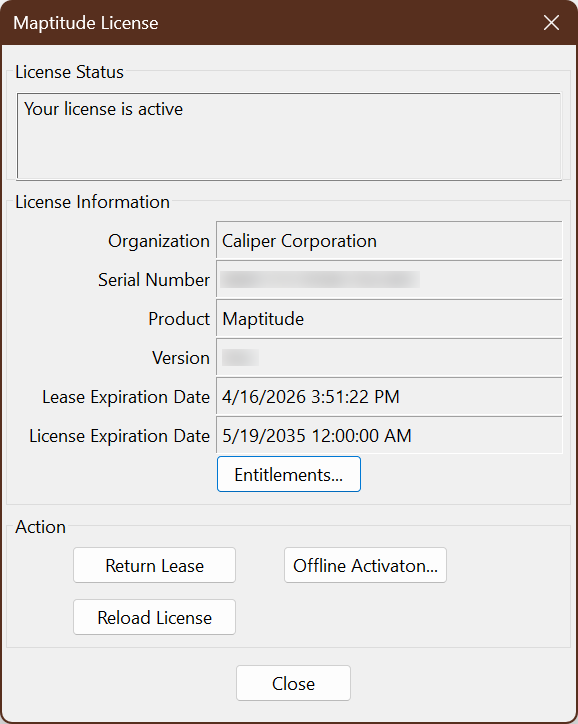
These are the steps to refresh your license with any changes:
- In Maptitude, go to Help > Manage License
- Click the “Reload License” button
- Close and reopen the program
If you have any issues with these steps, see Common Activation Issues and Solutions