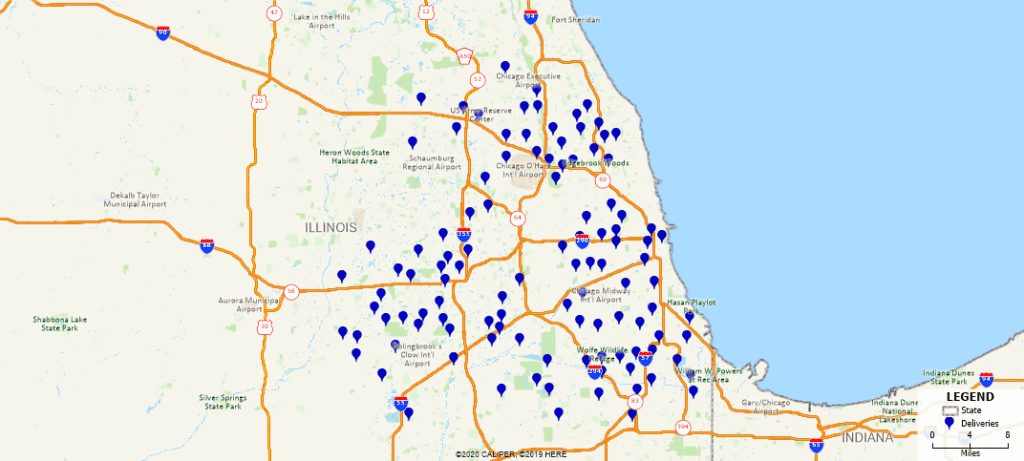
Change the Style of your Selection Set
To change the style of the active selection set, click the Change the style for this selection set button on the Selection toolbar.
Maptitude Learning Portal articles tagged with Customize
To change the style of the active selection set, click the Change the style for this selection set button on the Selection toolbar.
You can display the Rename Selection Set dialog box by right-clicking on a selection set in the Display Manager and choosing Rename.
You can add tools to let you navigate through selection sets or keep running totals for a certain field of a selection set by clicking Options in the Selection Toolbar and checking the appropriate boxes.
You can change the default style used by the drawing tools by choosing Edit>Preferences and clicking the polygon, line, or point sample buttons on the Freehand/Layout tab.
Maptitude Webinar: New Features in Maptitude 2019
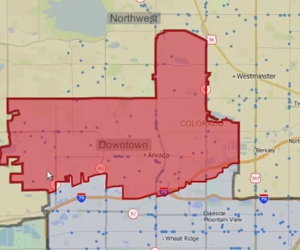
Using the Maptitude Territory Manager to create and modify territories in a territory layer
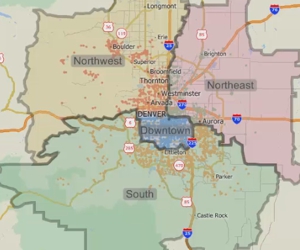
Using the Maptitude Territory Wizard to create and modify a territory layer
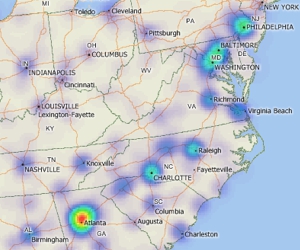
Using a density grid based on features in a point layer
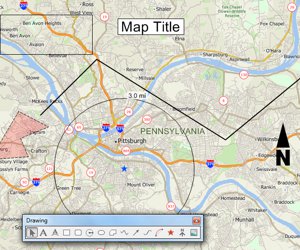
An introduction to using the tools on the Drawing toolbar for embellishing a map and performing basic analysis