
Last Updated: April 1, 2026
This page goes over the common reasons that the activation process can fail, the messages that you will see in these cases and what to try next to get your license of Maptitude activated.
Table of Contents
1. Your License of Maptitude Is Already Activated on Another Installation of Maptitude
2. Your License of Maptitude Has Expired
3. You Are Unable to Communicate Directly with Our License Server
4. You Entered the Serial Number Incorrectly
Your license of Maptitude is already activated on another installation of Maptitude
If you see the error message “Your license is not active. Serial number MAP-123-XXX-456-YYY is already in use by the maximum number of allowed users“:
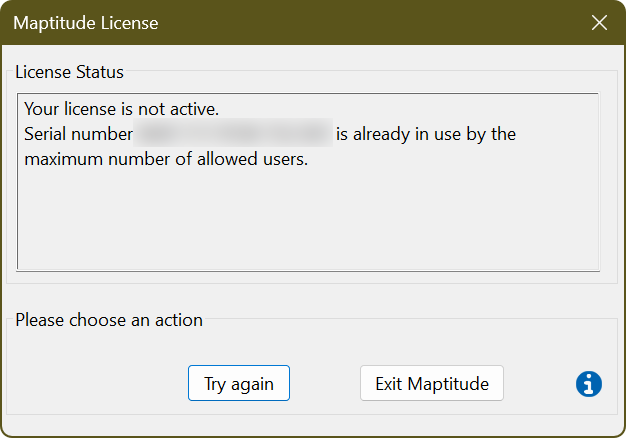
This indicates that your license is already active.
If your license of Maptitude is activated in another location (e.g. on a desktop and you are trying to install on your laptop) you will not be able to activate this license before you deactivate it in its current location.
If you know where the license is currently activated, see here for Moving your Maptitude License to another Computer/Server.
If you don’t know where it is currently activated, or if you no longer have access to where the current license is activated (lost computer/wiped hard drive etc.) please contact support@caliper.com.
Your license of Maptitude has expired
If you see the error message “Your license is not active.
The license has expired for serial number MAP-123-XXX-456-YYY. Please contact Caliper support for assistance”:
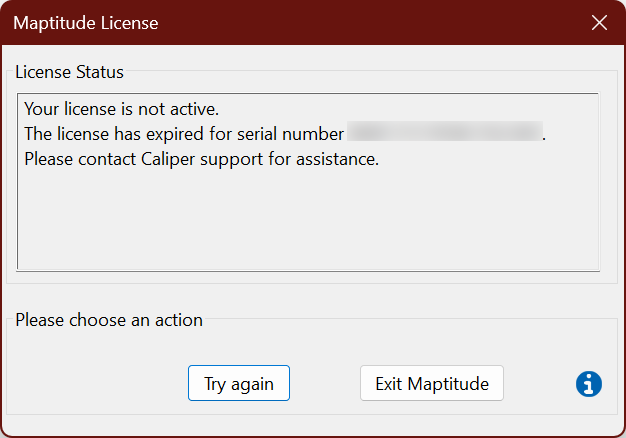
This indicates that your license of the Maptitude software has expired. This is common with trials of the software, which expire after 30 days, or subscription licenses that have not been renewed. Please upgrade your license here or contact sales@caliper.com.
You are unable to communicate directly with our license server
If you see the error message “Your license is not active.
Request timed out after 10 seconds. Please check your network connection and server availability”:
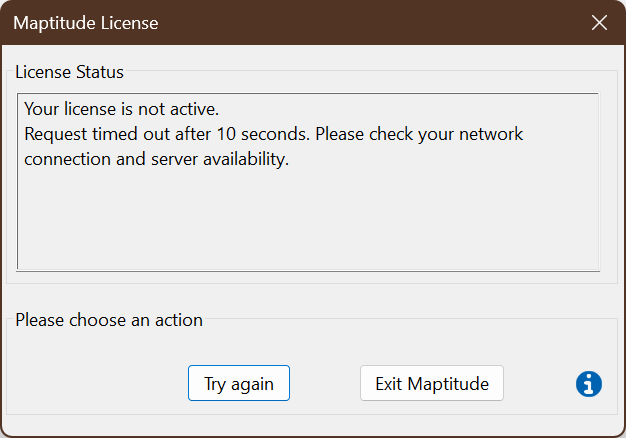
This indicates that there is something interfering with your communication with our network. In the case that this communication is blocked, often by a company firewall, or if you are not connected to the internet, you can perform this communication manually by email. See here for Activating Your Maptitude License Manually
You entered the Serial Number Incorrectly
If you input an incorrect Serial Number, you will see an error message saying “Please enter a valid serial number of the form ABC-123-DEF-456-GHI”:
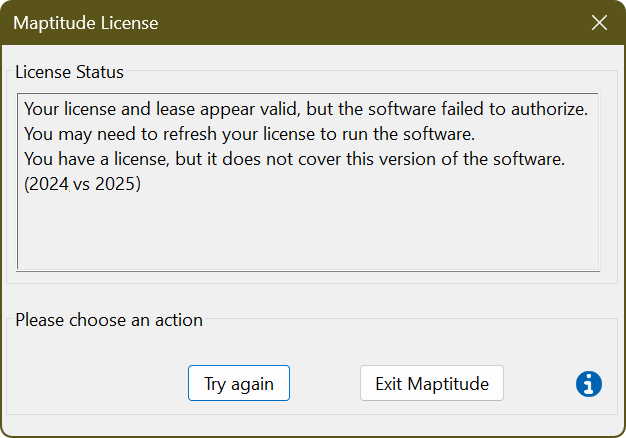
This can happen if you input the serial number incorrectly, or if you are using an old serial number. If you upgrade to the latest version of Maptitude, your serial number will change so make sure you are using the one provided to you in the download email.
To properly configure the serial number for your Maptitude license, you may need to uninstall and re-install the program.
You can uninstall using Windows’ Add or Remove Programs, then reinstall by following the tutorial article on installing Maptitude using the downloaded installer files.