
Last Updated: October 16, 2026
Normally, Maptitude licenses are activated automatically, with no action needed on your part. When that automatic process is not possible or does not succeed, you can activate manually instead by requesting a key by email and entering it yourself.
This article describes how to activate Maptitude if your computer is not connected to the internet or is unable to automatically obtain a license.
Select the link below for your version of Maptitude.
Table of Contents
1. How to Activate a License Manually
2. How to Activate a License Manually in Older Versions of Maptitude
How to Activate a License Manually
Step 1: Generating a Request
After attempting an automatic activation that fails, you will see the below screen:
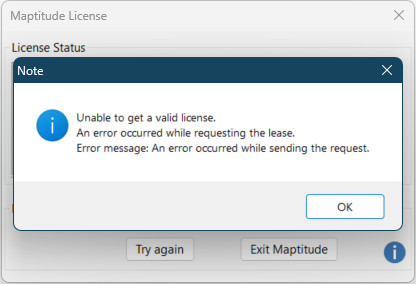
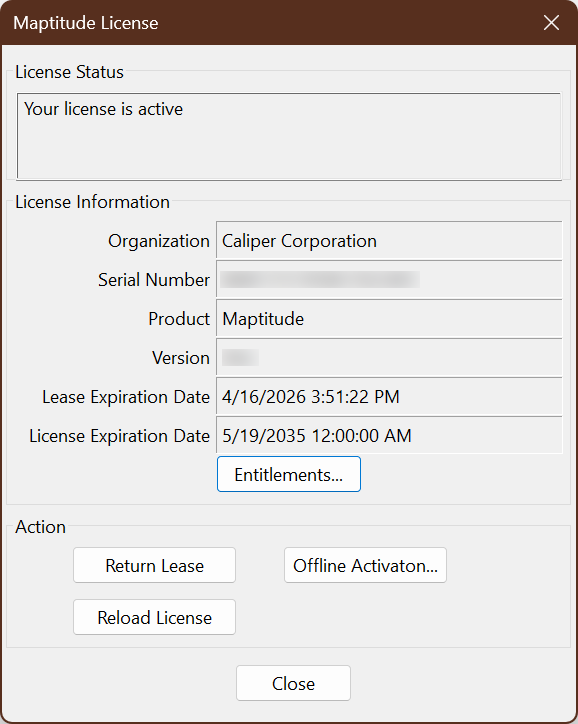
- Click OK to dismiss the message, then click Offline Renewal…
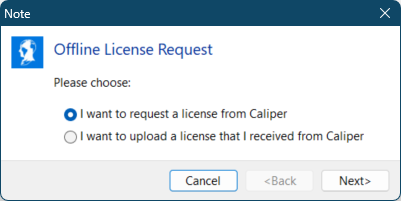
- Choose I want to request a license from Caliper and click Next.
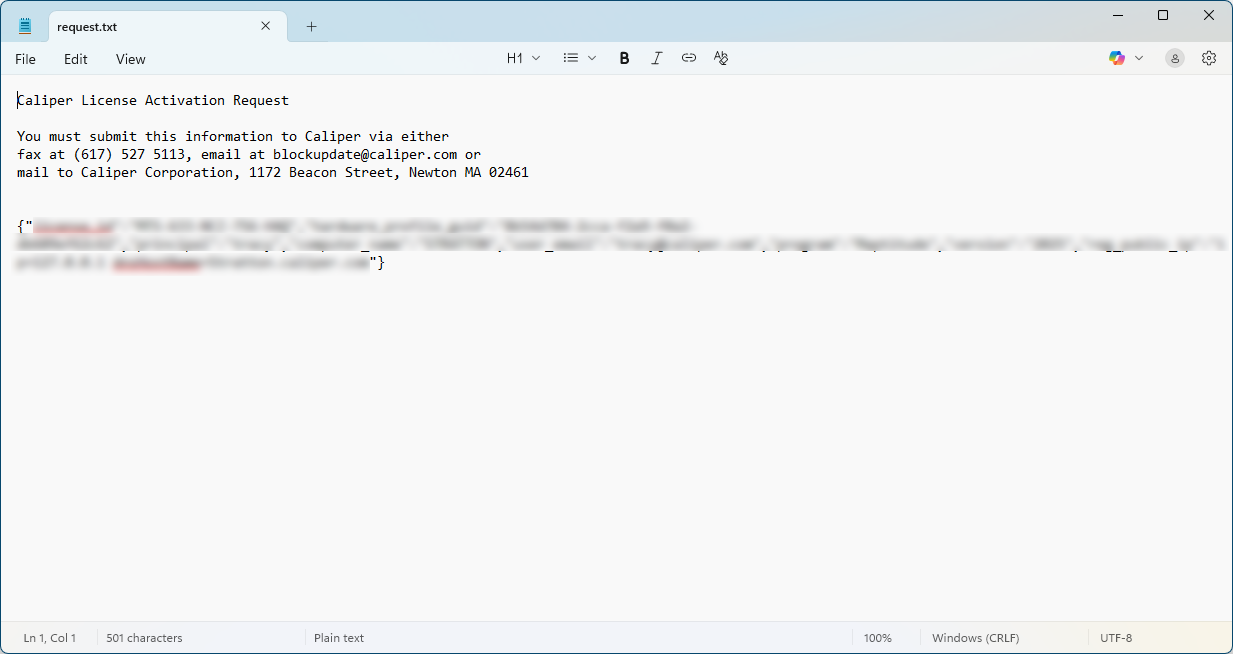
- If you have a default mail client set up, choose Create an email message to send to Caliper, which will draft the correct email to send for a manual activation request.
- If you do not have a default mail client, choose Create a file to send to Caliper and save the text file to an appropriate location. Then, copy and paste the text in the text file into an email addressed to blockupdate@caliper.com with the Subject line Software Key Activation Request
- Send the email and wait for a response.
 Step 2: Receive Response You should receive an email back shortly. Note: We do have to manually review these activation requests, so if you are requesting outside regular business hours 9am to 5pm EST, there might be a delay in response. If your license is eligible to be activated you will receive an email with an activation code: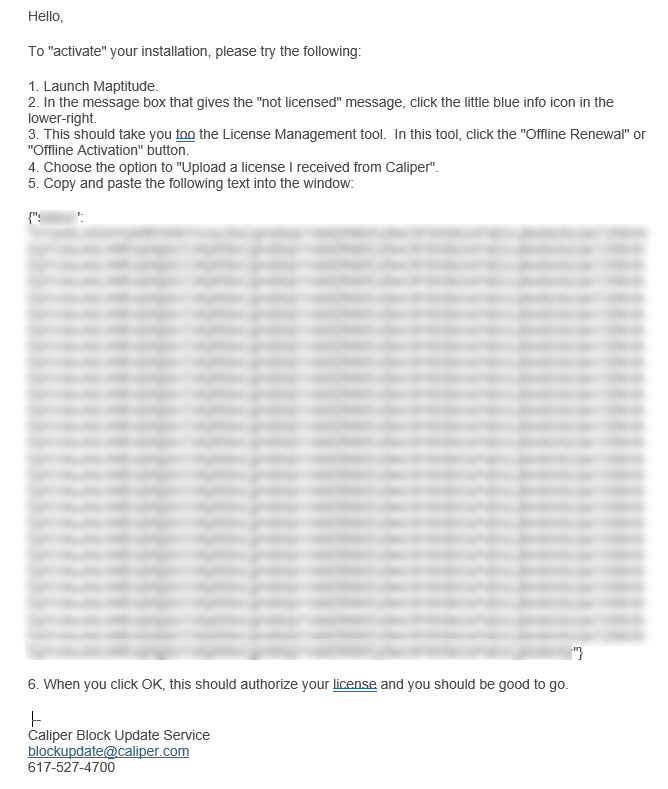
- Choose Help>Manage License… click Offline Renewal…
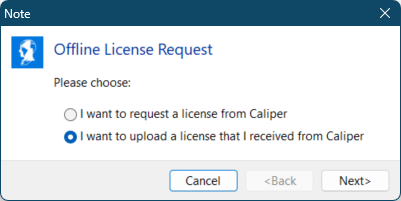
- Choose I want to upload a license that I received from Caliper and click Next.
- Copy and paste the long string of letters and numbers received in the email into the text input box. Click OK.
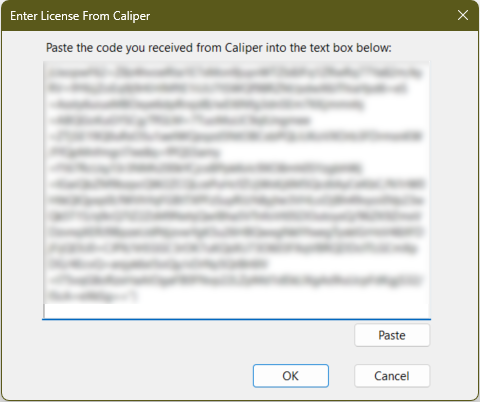
- This will apply the activation code you received and the software will be activated. Note: This activation code is for one-time use and cannot be used to activate on another machine, nor on the same machine after its first use.
How to Activate a License Manually in Older Versions of Maptitude
The Activation Wizard for Maptitude should ideally activate your software by automatically requesting a code from our server and inputting that code without you having to be involved. Make sure you have tried Activating Your Maptitude License Automatically before following these steps.
If the Automatic Activation fails, usually due to a firewall setting that blocks communication with our server, you can activate your software by manually requesting a key by email and applying it yourself.
Step 1: Generating a Request
After attempting an automatic activation that fails, you will see the below screen:
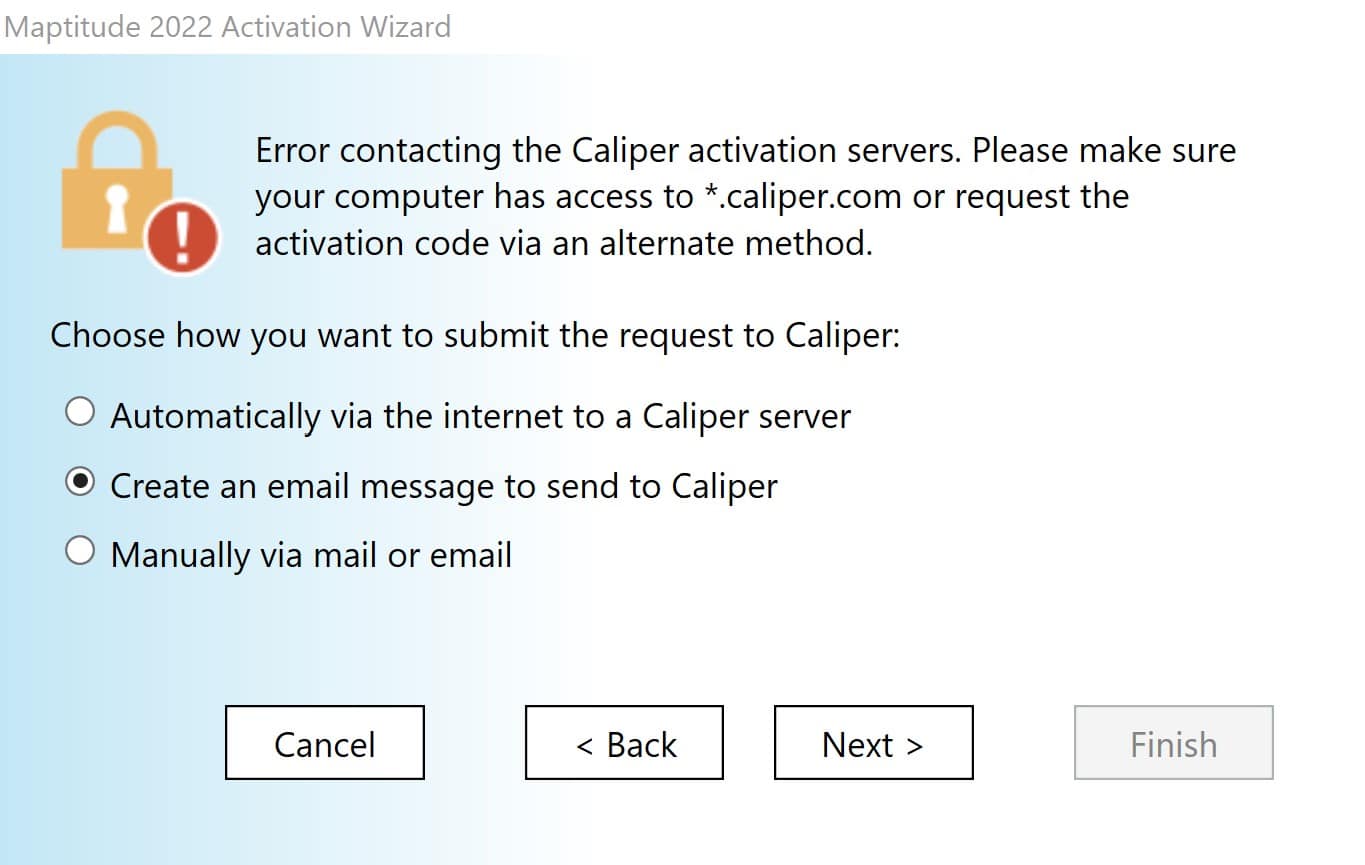
- If you have a default mail client set up, choose Create an email message to send to Caliper, which will draft the correct email to send for a manual activation request.
- If you do not have a default mail client, choose Manually via mail or email and save the text file to an appropriate location. Then, copy and paste the text in the text file into an email addressed to blockupdate@caliper.com with the Subject line Software Key Activation Request
- Send the email and wait for a response.
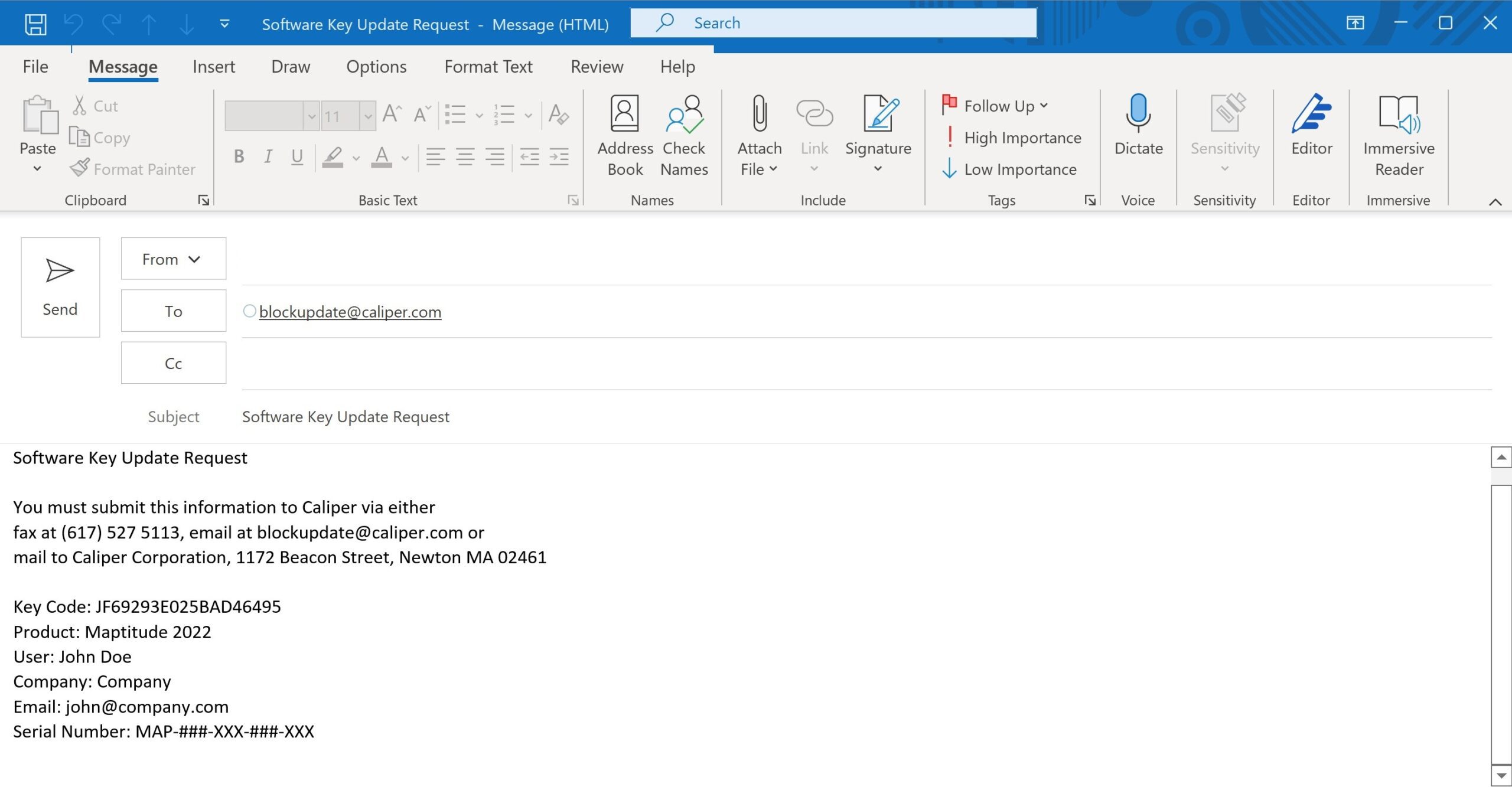 Step 2: Receive Response You should receive an email back shortly. Note: We do have to manually review these activation requests, so if you are requesting outside regular business hours 9am to 5pm EST, there might be a delay in response. If your license is eligible to be activated you will receive an email with an activation code: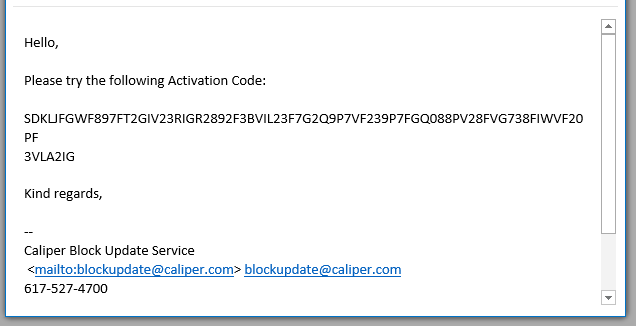
- Run Activation Wizard for Maptitude again and choose I have already requested and received an activation code from Caliper
- Copy and paste the long string of letters and numbers received in the email into the text input box. Click Next.
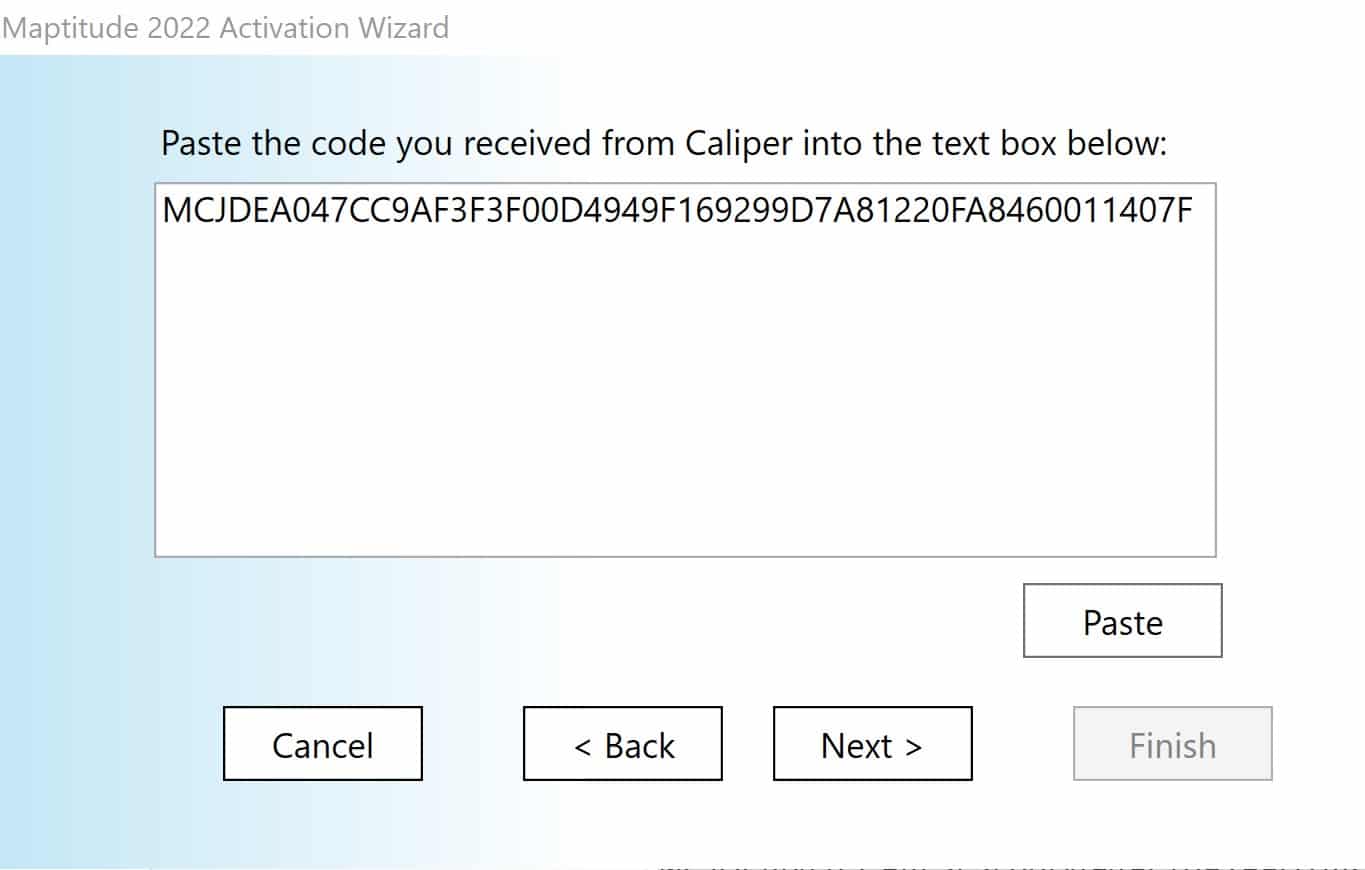
- This will apply the activation code you received and the software will be activated. Note: This activation code is for one-time use and cannot be used to activate on another machine, nor on the same machine after its first use.
If the license you requested an activation code for is not able to be activated, the response email will explain why and go over what to do. See here for Common Activation Issues.