Last Updated: January 5, 2026
Maptitude is known for its stability and reliability. But with any Windows application, there can sometimes be issues. With Maptitude these are rare. However, in the unlikely event that you do run into problems, this article covers how you can debug your program when it crashes and gather information for our support team to assist you to get you up and running in a very short amount of time. The article is divided into sections for the Desktop and Online versions of Maptitude.
Table of Contents
1. Desktop: Reinstallation
2. Desktop: Error Messages
3. Desktop: Event Viewer (No Error Message)
4. Desktop: Dump File
5. Online: Hard Reload of the Map
6. Online: Browser’s Console
7. Online: Diagnostic Error Message
Desktop: Reinstallation
If you are running into issues with Maptitude, especially after a Windows update, first reinstall the program.
Desktop: Error Messages
Do you get any warnings or errors when you try to launch Maptitude? If so, please take a screenshot of the error or write down the message and send it to support@caliper.com.
Desktop: Event Viewer
If nothing happens at all, no messages or popup windows, then please try checking the Windows “Event Viewer” which logs Windows errors:
-
Click on the Windows Start button.
-
Type “Event Viewer” in the search bar and open it.
-
In Event Viewer, navigate to Windows Logs → Application.
-
Look for “error” entries that occurred around the time Maptitude crashed.
-
Take a screenshot of the error message or write it down.
-
Send the details to support@caliper.com.
If you’re having trouble writing this information down, see the following steps:
- Right click on an event (such as a particular warning or error).
- Choose “copy”, then “copy details as text”.
- Then paste that into an email, which can be useful in helping us troubleshoot.
Desktop: Dump File
Check to see if a dump file was generated, and if so send it to support@caliper.com.
This would be of the form C:\Users\<username>\AppData\Local\CrashDumps\Mapt.exe.34324.dmp
Online: Hard Reload of the Map
If you are running into issues with Maptitude Online, first do a hard reload of the map in the browser by pressing Ctrl + F5, to make sure you get the latest version of the map and the vector tiles.
In a browser, the main difference between pressing F5 and Ctrl + F5 is that Ctrl + F5 forces a page to reload, while F5 performs a normal refresh
Online: Browser’s Console
If you are running into issues with Maptitude Online, you can also check for issues in your browser’s console.
In most browsers, you can right click anywhere and choose the Inspect option, then navigate to the Console tab.
If there are “error” entries, please take a screenshot of the console and send it to support@caliper.com
Online: Diagnostic Error Message
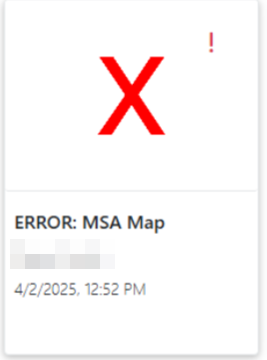
If a map fails to upload and is displaying as a large “X” thumbnail in the home page, click on the exclamation point icon in the upper right corner of the thumbnail. This will bring up a diagnostic error message. You can copy this and send it to support@caliper.com.