
Last Updated: June 3, 2026
After you have downloaded the software from your download link (see here for more details), you will be prompted to input your serial number:
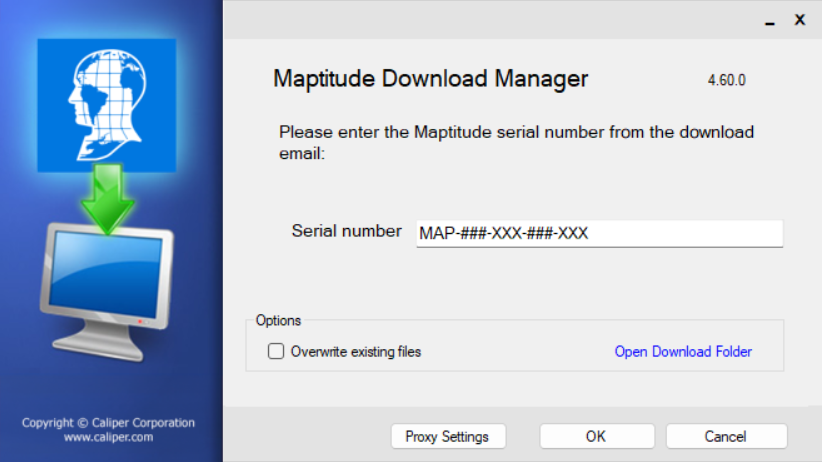
Click OK. The program and country package will then download. Once it finishes downloading, you can click Install:
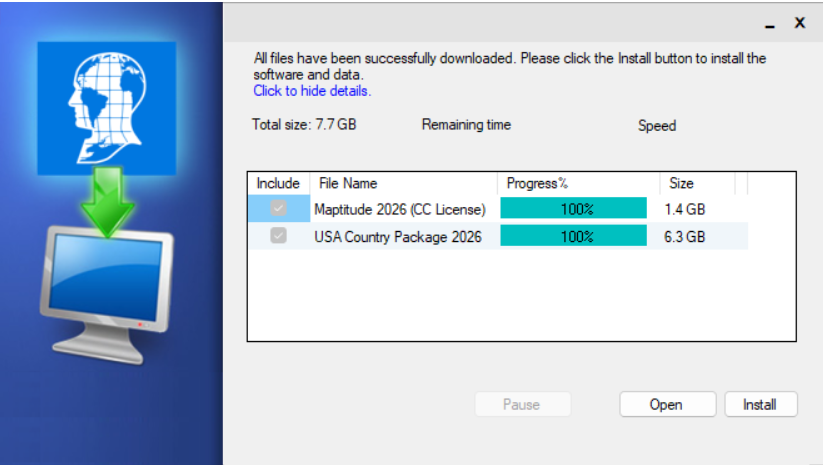
NOTE: If you purchased an upgrade, your serial number may have changed.
In the installation wizard, You will be prompted to run the installer and accept the license agreement. Then you will be asked where to install the data to. We recommend keeping the default of the C://ccdata folder.
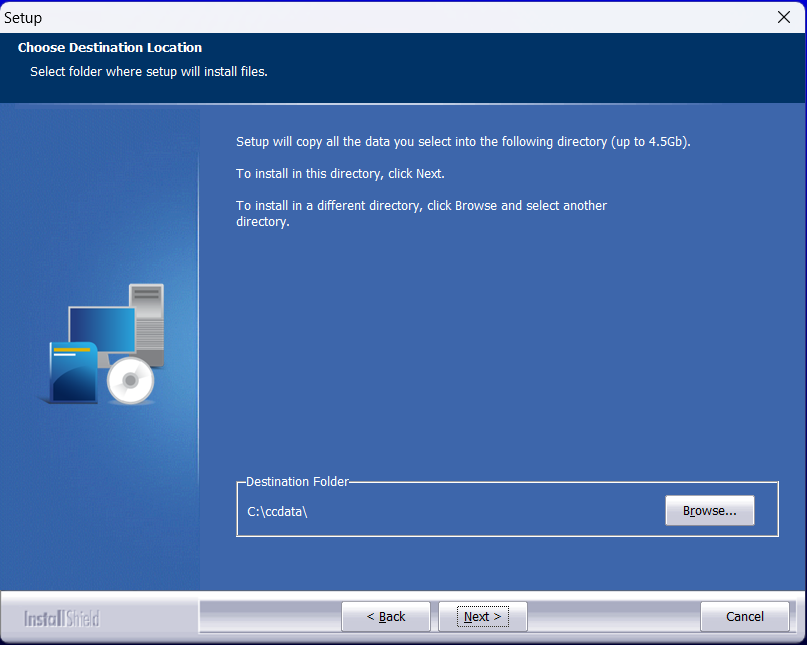
Continue to click Next. You will be prompted to enter in your serial number again:
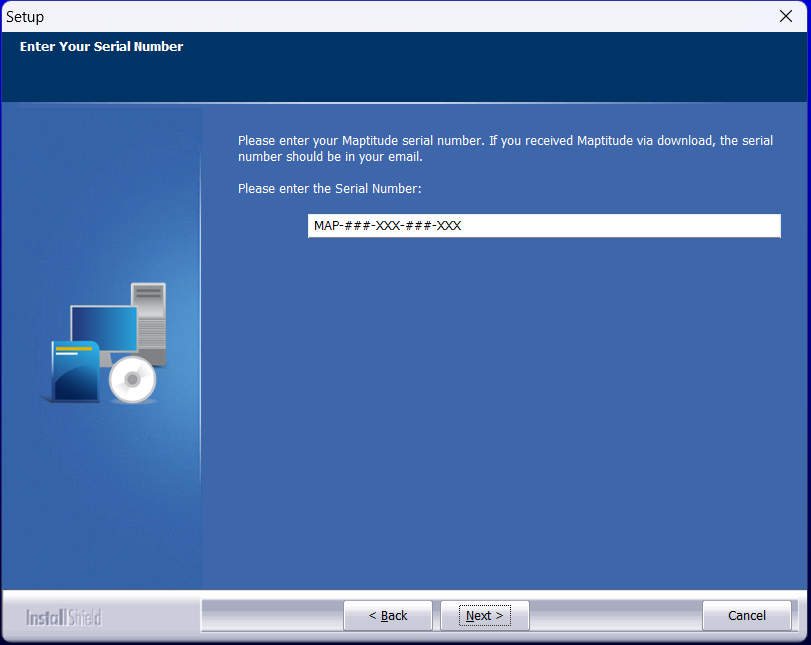
Keep clicking Next as the data is installed. In the last page of the installer, you will be prompted to choose whether or not you are also installing the country package. Check the relevant option and hit Finish. If you choose to install the country package, you will be redirected to the next installer.
Continue to click Next to accept terms and choose where to install the country package:
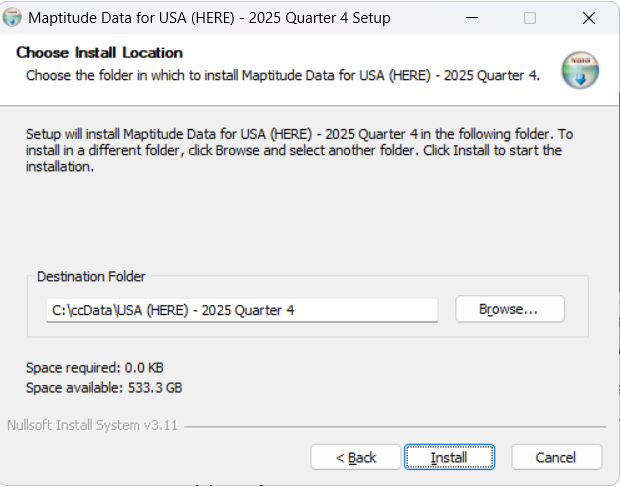
Click Install. Then, once the process is complete, click Finish.
If the installation is interrupted or not proceeding as detailed above, please try Installing from a Download Folder