
Last Updated: June 5, 2026
You can exclude links from your routes using route mapping software. Users can enable or disable specific sets of links, including ferry routes, when calculating routes in Maptitude. This article covers how the new Enable/Disable Links feature works and how it improves routing flexibility. This is especially helpful when planning routes for vehicles that should avoid certain link types, like commercial trucks avoiding ferry crossings.
For example, a logistics manager planning long-haul routes across the U.S. may want to disable ferries from being used in the route calculation. With this feature, you can easily apply predefined exclusion sets (like ferries) or your own custom selection sets, and Maptitude will generate routes that reflect these preferences.
To follow the steps in this article, download and install a free trial of Maptitude mapping software, or use your own license of desktop Maptitude.
Table of Contents
- Supported Link Types
- Excluding Ferries from Routing
- Creating Custom Link Exclusions
- Restoring All Links for Routing
Supported Link Types
The Enable/Disable Links feature supports the following types of exclusions:
| Link Type | Description | Included as Built-in Set? |
|---|---|---|
| Ferries | All ferry links including passenger ferries | ✅ Yes |
| User-defined sets | Custom selection sets (e.g., avoid low bridges) | ❌ No |
You can combine these exclusions to control which routes Maptitude will consider valid.
Excluding Ferries from Routing
Ferry routes may be inappropriate for many vehicle types, for example if you are trying to calculate deliveries in the Midwest and want to avoid routes that involve ferries across the Great Lakes. To exclude them:
-
Open a map of your stops or just a plain map of your countries if you are manually adding your points via the Routing & Directions Manager.
-
Tools > Routing & Directions > Routing & Directions Manager.
- Create a route based on a layer of choice or by clicking on the map manually.
-
In the Routing and Directions Manager, click
 to display the Route Options dialog box.
 -
Click the Exclude tab and check the All Ferries box to exclude traveling on ferries and/or check the Selected Links box and choose a selection set that contains the links to exclude from the Selection Set drop-down list.
-
Click OK and Optimize to calculate your route.
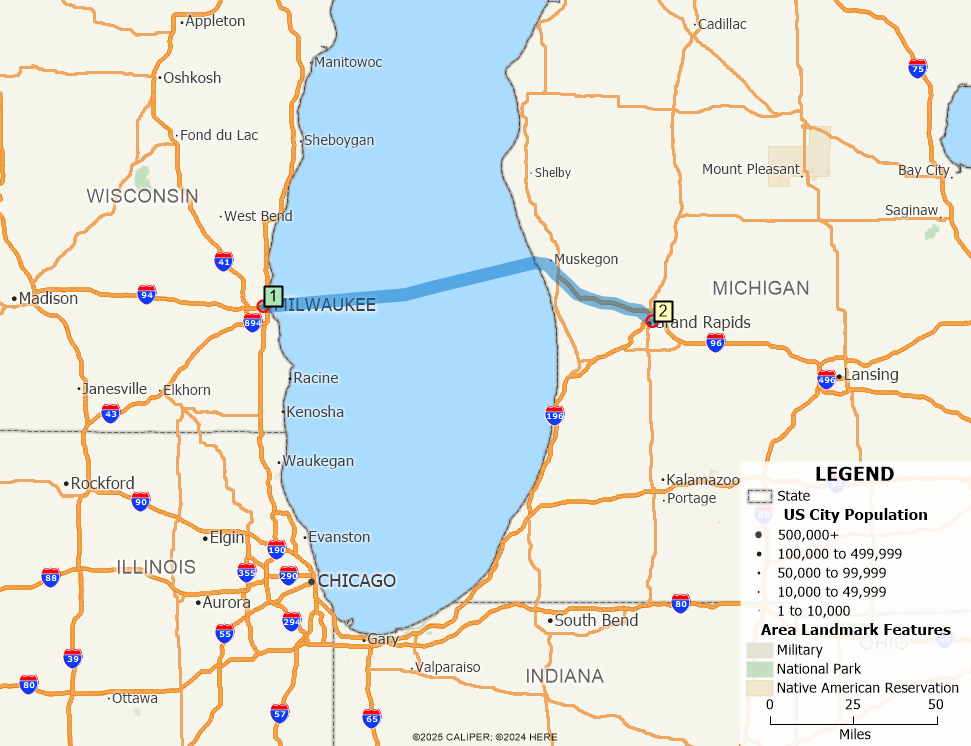
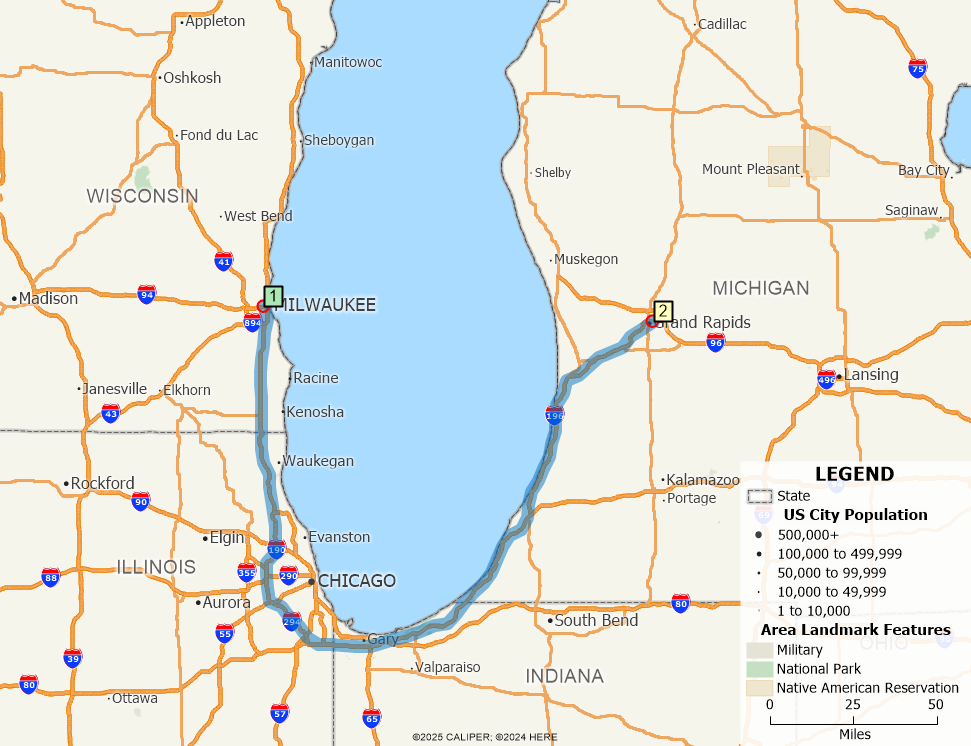
If any ferry links were part of your previous route, they will be bypassed in the updated calculation.
Creating Custom Link Exclusions
In addition to ferries, you can exclude any selection set of links that you define on the street layers. This is useful for avoiding roads under construction, low clearance bridges, or toll roads.
To create a selection set of excluded links:
- Set the Street layer as your working layer.
-
Use the selection set tools to select the links you want to exclude. When you are done, expand the Street layer in your display manager and expand Sets. You will find your selection set here. Right click and select Rename… to name it accordingly (e.g. AvoidConstruction).
-
In the Routing and Directions Manager, click
to display the Route Options dialog box. -
In the Exclude section, check Selected Links and choose your selection set.
-
Click OK and calculate your route.
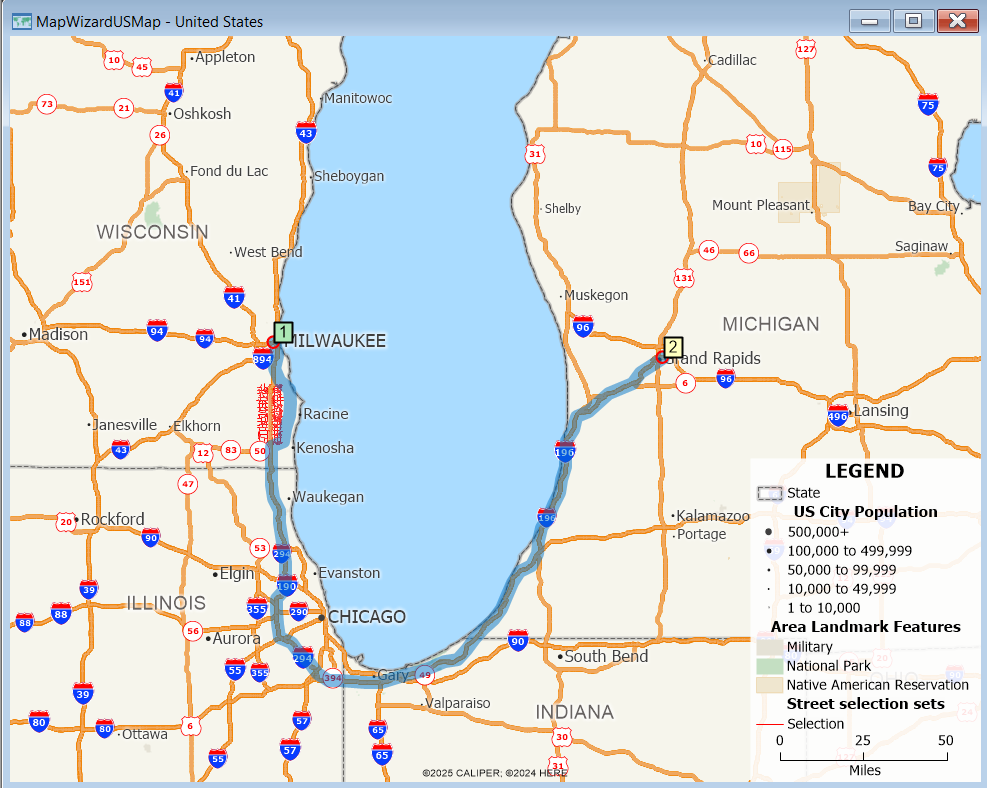
You can use both the “Avoid Ferries” and a custom set at the same time.
Restoring All Links for Routing
If you want to reset the routing network to use all available links again:
-
In the Routing and Directions Manager, click
 to display the Route Options dialog box.
 -
Uncheck all link exclusion options.
-
Click OK then click Optimize.
-
Maptitude automatically re-enables any previously excluded links in memory.
Each time you open the routing toolbox, Maptitude ensures that exclusions reflect the most recent user selections. If the exclusion logic was applied in a previous session, it will be reset unless the workspace was saved and reopened with persistent exclusions.
If your map contains exclusion sets that are not found (e.g., your custom selection set was renamed), Maptitude will skip those and prompt you to reconfigure.
For more information on how to create and use selection sets, refer to our learning portal video on creating and using selection sets.
For more information on optimizing delivery routes, refer to our learning portal article on optimizing delivery routes.
For more information on using drive-time rings and distance and travel time tables, refer to our learning portal article on when to use drive-time rings and distance and travel time tables.