
Last Updated: April 15, 2026
Users who have imported large files or have been working with the same workspace for a while, it might be helpful to clean up the workspace. This could be due to large territory layers, many imported records, or large routes, along with many other factors.
The suggestions below can result in permanent changes to maps and workspaces so make sure you back up the workspace and save copies as needed.
For a description of a workspace please see this article https://www.caliper.com/learning/what-is-a-workspace-file-and-how-do-i-use-it/
- Use Compressed Workspaces (.wrkz)
- Convert Existing Workspaces
- Turn Off Automatic Backup
- Remove Extraneous or Unused Maps
- Remove Unnecessary Layers and Data
- Exclude Unneeded Country Package Data
- Check for Differences when using Territories
Use Compressed Workspaces
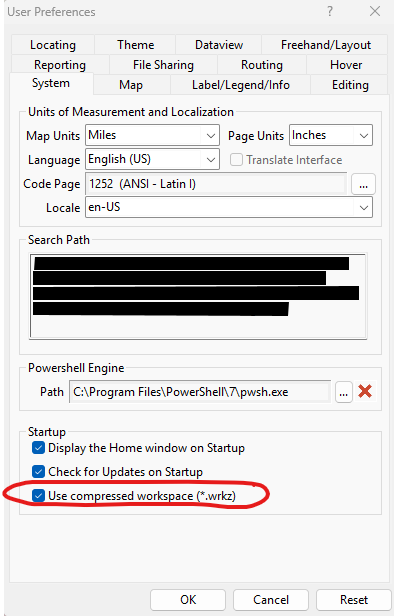
Save your workspace as a compressed file (.WRKZ) instead of the standard uncompressed format. This stores all tables, layers, and analysis results in a single, smaller file, making management and sharing easier.
This can be done in the Edit > Preferences > System tab.
Convert Existing Workspaces
If using an uncompressed workspace, open it and use File > Save Workspace As, then select Workspace – Compressed (*.wrkz) as the file type.
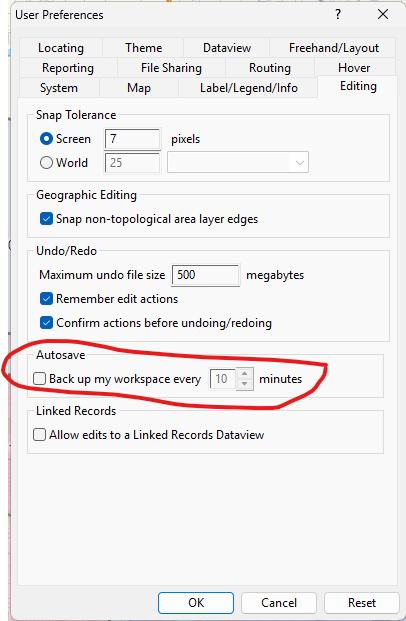
Turn off automatic backup
This could potentially result in losing unsaved work; please save regularly if this is turned off. Use the options in the Edit > Preferences > Editing tab to turn off autosave.
Remove extraneous or unused maps
Use the options in File > Properties to view the maps in a workspace. This displays a list of maps and whose names can be changed to make them easier to identify. Use the red X in the upper-right corner of the map window to remove it.
Remove Unnecessary Layers and Data
Review your workspace before saving and delete any layers, tables, or analysis results that are not essential. Keeping only the necessary data will help reduce file size. This can be done in each map by right-clicking on a layer name (in the Display Manager) and choosing “Remove”.
For a more comprehensive approach, use the Delete button in Tools > Editing > Layer Manager. Click the ? icon in the Layer Manager toolbar for more information about this tool.
Exclude Unneeded Country Package Data
Country Package layers (such as streets, landmarks, and states) are not compressed into WRKZ files. Only include the layers you need, as adding too many can increase file size and complicate sharing.
Check for Differences when using Territories
Check for differences and changes in data that affect your territory layers. For example, if your underlying layer or table has changes to the values in the tracking fields, you can run a check and choose whether to update the calculated tracking values. Similarly, if the underlying area’s boundaries have changed, you can choose whether to update the territory boundaries.
- Click Options in the Territory Manager and choose Check for Differences to display the Confirm dialog box.
- Click Yes. Maptitude checks the territory layer for any errors. Complex geographic files, such as ZIP Codes, will take more time to check.
- If no errors are found, Maptitude displays a Note dialog box. Click OK. Otherwise, Maptitude displays a note describing the differences:
If… Choose… Attribute totals are inconsistent To correct the errors or continue without corrections. Boundaries are inconsistent The option to “Keep territory boundaries and update the area assignments.” We recommend that you save your territory layer to a backup archive when prompted, as the updates cannot be undone.