



Author: Stewart Berry
21 October 2026
A browser AI agent built five balanced sales territories in Maptitude Online from one plain-English request
Most of the time spent in mapping software goes into two things: working with the tools, and choosing the data to use with them. AI now helps with both, in Maptitude Desktop and Maptitude Online.
You can ask a question and get step-by-step help. In Maptitude Online, you can also describe the data you want and get a table and map back, or ask an AI agent in your browser to build the map for you.
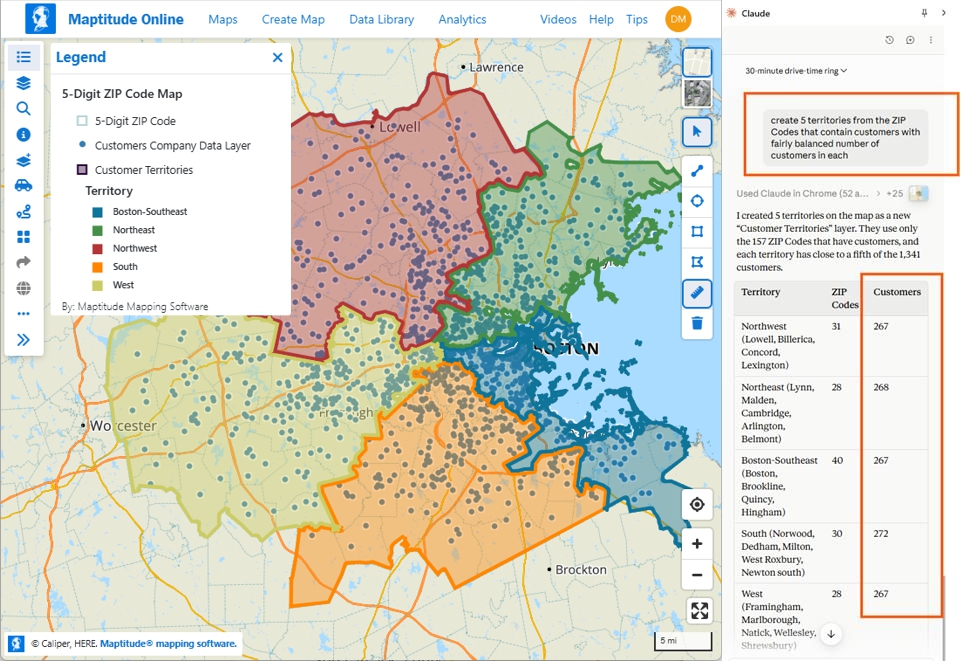
For example, we typed this into a browser AI agent: “Create 5 territories from the ZIP Codes that contain customers with a fairly balanced number of customers in each.” The agent split 1,341 customers into five sales territories of 267 to 272 customers each.
This article walks through four ways to use AI with Maptitude. Each section includes real prompts you can copy.
In this article:
Four Ways to Use AI with Maptitude
Get Answers to How-To Questions
Get Data with the AI-Powered Data Library in Maptitude Online
Let a Browser AI Agent Do the Work in Maptitude Online
Make a Competitor Map in Two AI Prompts
Use AI to get how-to answers, pull data, or have the map built for you. This table shows which AI tool does each, which product it works with, and where to find it.
| Way to use AI | Works with | What you get | Where to find it |
|---|---|---|---|
| Maptitude Virtual Assistant | Maptitude Desktop and Maptitude Online | Step-by-step answers to how-to questions | Maptitude Support Chat panel on every Learning Portal page |
| Any AI assistant | Maptitude Desktop and Maptitude Online | How-to answers | The AI assistant you already use |
| AI-powered Data Library | Maptitude Online | Data tables you can download or map | Data Library tab |
| Browser AI agent | Maptitude Online, including maps made in Maptitude Desktop | The work done: territories, demographic maps, drive-time rings, routes, map styles, more... | A browser AI plugin, such as Claude in Chrome or the ChatGPT Chrome extension |
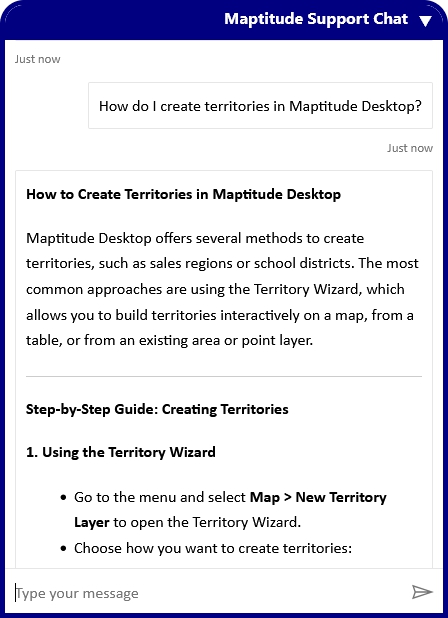
For step-by-step help with a task in Maptitude Desktop or Maptitude Online, ask the Maptitude Virtual Assistant, an AI-powered helper on every page of the Maptitude Learning Portal.
How to do it:
For example, we typed “How do I create territories in Maptitude Desktop?” and the assistant replied with step-by-step guidance.
Or ask the AI assistant you already use.
Many AI assistants can answer how-to questions about Maptitude Desktop and Maptitude Online.
The Maptitude Virtual Assistant answers how-to questions on every Learning Portal page
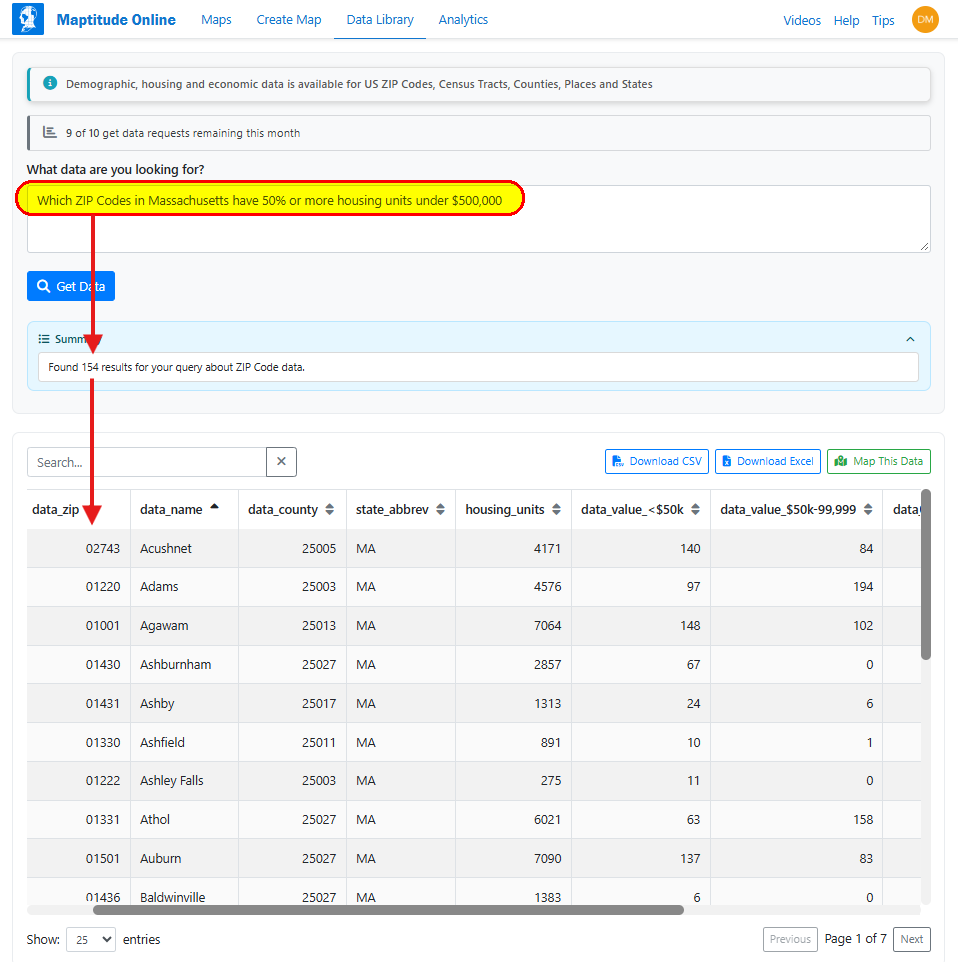
When your question is about data, use the AI-powered Data Library in Maptitude Online. Describe the data you want in plain English, such as poverty rates by county, and the AI returns matching records that you can download or map. Results draw on the 900+ demographic variables in Maptitude Online.
How to do it:
Requests you can copy:
Describe the data you want, then download it or map it
The Maptitude Virtual Assistant gives you answers, and the AI-powered Data Library gives you data. A browser AI agent goes a step further and does the work for you in Maptitude Online, clicking, typing, and picking options as you would. Claude in Chrome and the ChatGPT Chrome extension both work with Maptitude Online.
Note: Claude in Chrome and the ChatGPT Chrome extension are third-party tools, not part of Maptitude. Each follows its own provider’s terms and safety guidance. The agent can see what is on your screen, so check your organization’s AI policy before using it with customer or other sensitive data.
You describe the result you want. The agent works out the steps. The agent can also process your data itself, then use Maptitude Online to map and analyze the result.
Work in Maptitude Desktop? Upload your map to Maptitude Online, and the AI agent can work with it there.
We ran these examples with Claude in Chrome in Maptitude Online. They start with the territory map from the top of this article, followed by a demographic map, a drive-time ring, a route, and a map restyle.
Say you want to split your customers among five sales reps, so each rep covers about the same number of customers.
What we typed: “Create 5 territories from the ZIP Codes that contain customers with a fairly balanced number of customers in each”
What the agent did: Claude read the customers in the customer table, counted them by ZIP Code, and did the balancing itself. Claude then added its ZIP Code assignments to the map as a new territory layer. Claude also saved the list as a file, zip_territories.csv.
The result: Five territories built from the 157 ZIP Codes that have customers. Each territory is one connected area.
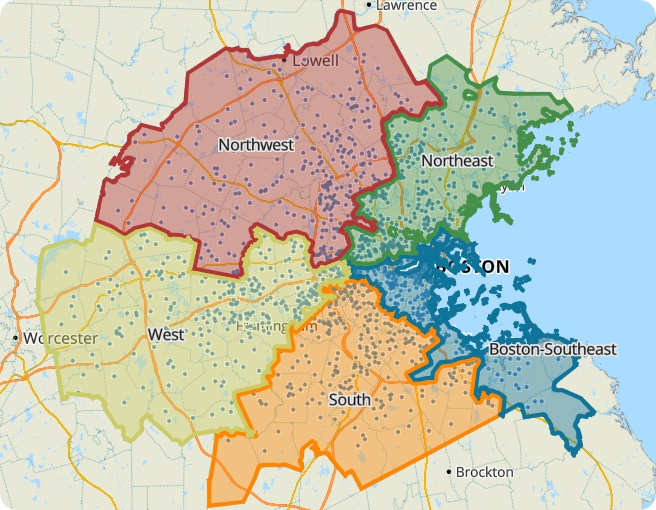
Claude balanced 1,341 customers into five territories of 267 to 272 customers each
| Territory | Customers |
|---|---|
| Northwest | 267 |
| Northeast | 268 |
| Boston-Southeast | 267 |
| South | 272 |
| West | 267 |
| Total | 1,341 |
Next, we asked the agent for a demographic map, with no customer data involved.
What we asked for: a map of Hispanic population by Census Tract.
What the agent did: The agent asked us to log in to Maptitude Online first. Then it used the Maptitude Create-a-Map Wizard to build a new map, “Hispanic or Latino Population by Census Tract.”
The result: A map that shades each Census Tract in green, with darker shades for more Hispanic or Latino residents and lighter shades for fewer. The map opened zoomed in on New York City.
The agent then offered two next steps: zoom to a state or metro area, or switch to percent Hispanic. The agent pointed out that percent compares Census Tracts better than raw counts, because Census Tract populations vary in size.
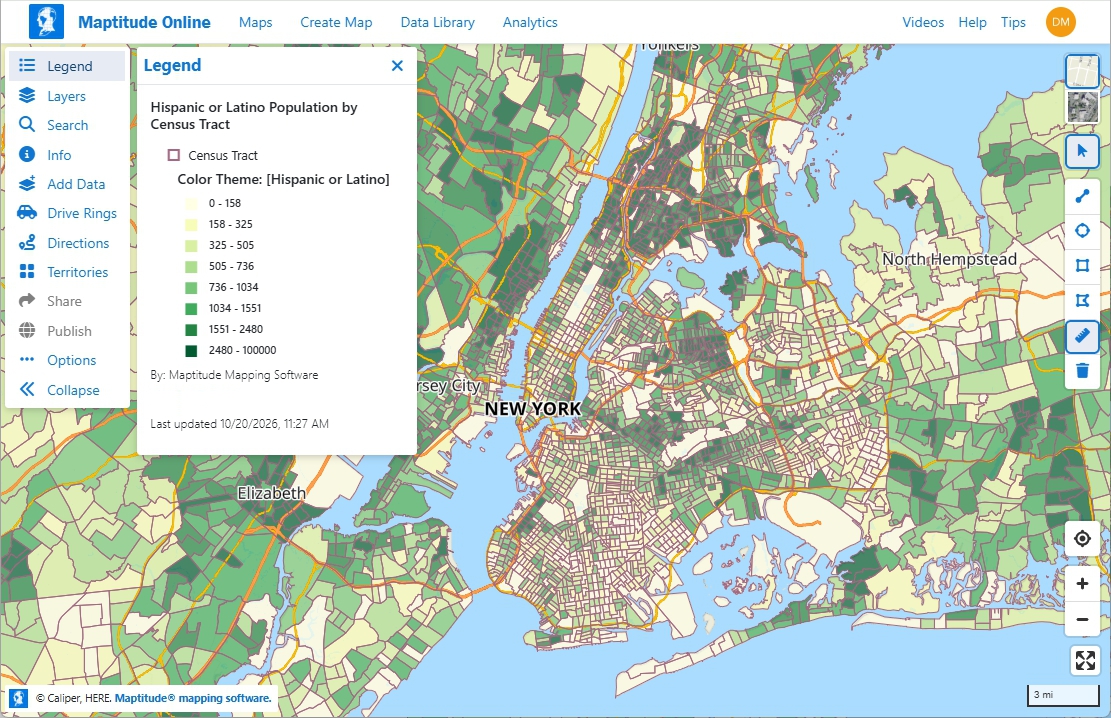
A browser AI agent used the Maptitude Create-a-Map Wizard to map Hispanic or Latino population by Census Tract
Here are three shorter prompts and what the agent did with each.
| What we typed | What the agent did |
|---|---|
| “Create a 30-minute drive-time ring around 1172 Beacon Street, Newton, MA.” | Added two layers: Drive-Time Rings Origin and Drive-Time Rings. |
| “Find the 5 customers with the highest sales and create a route from the drive-time rings origin that goes to those 5 customers.” | Built a route from the drive-time origin to those five customers. |
| “Change the customer icons to light gray circles.” | Changed the customer icons to light gray circles. |
To use a browser AI agent, you will usually need a paid plan from the AI provider, such as Anthropic for Claude or OpenAI for ChatGPT. The agent tells you what it did as it goes, so take a quick look at the map before you share it.
Like any AI tool, a browser AI agent can misread a request, place an address on a nearby point, or describe a step differently from what it did. Name the area and the data you want, check the map before you rely on it or share it, and keep sensitive data out of sessions your organization has not approved.
An AI agent can also map places you don’t have in a file yet, such as a competitor’s stores. Spirit Halloween stores open each fall, so we asked for a map of the stores in Massachusetts. Try these two requests:
The first request maps the stores. The second asks the agent to swap the blue dots for a free-to-use online pumpkin image.
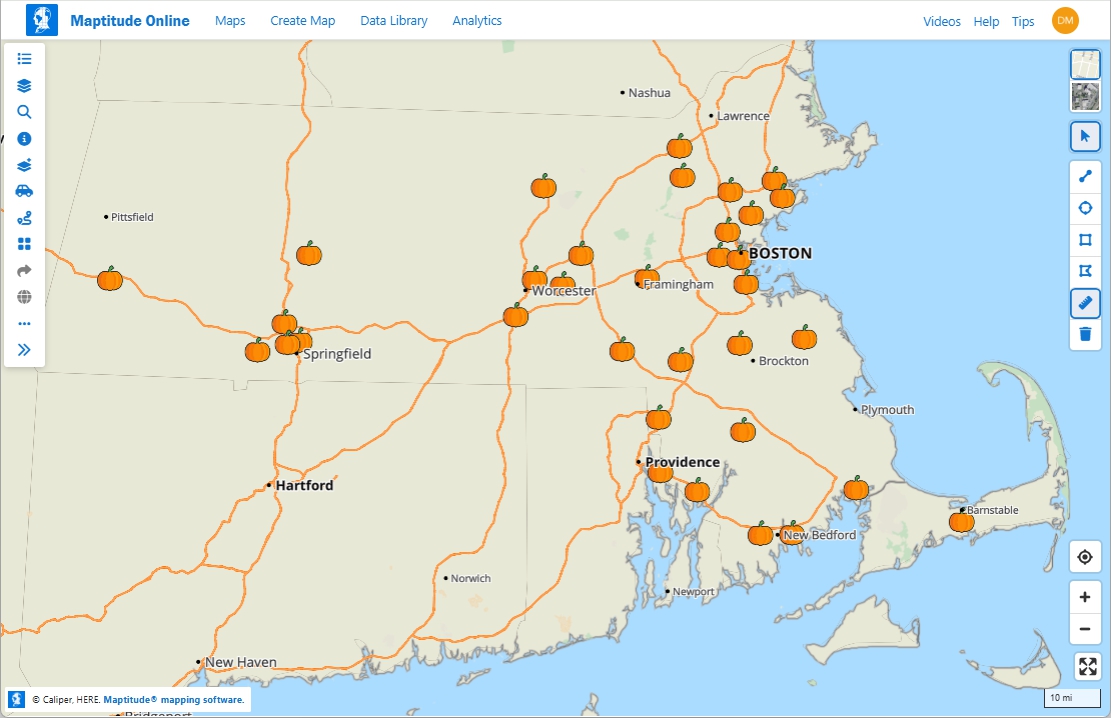
Two plain-English requests produce a competitor store map in Maptitude Online
Store addresses as listed by Boston.com, October 2026. Spirit Halloween is a trademark of its owner; Maptitude is not affiliated with Spirit Halloween.
Note: Claude in Chrome and the ChatGPT Chrome extension are third-party tools, not part of Maptitude. Each follows its own provider’s terms and safety guidance. The agent can see what is on your screen, so check your organization’s AI policy before using it with customer or other sensitive data.
Not sure which AI tool to start with? Match your task to a tool:
| Your situation | Try this |
|---|---|
| You need to split customers into sales territories with about the same number of customers each | A browser AI agent in Maptitude Online |
| You need a delivery or visit route to your top customers | A browser AI agent in Maptitude Online |
| You need Census numbers for a market, such as poverty rates by Census Tract or travel time to work by ZIP Code | The Data Library in Maptitude Online |
| You need a demographic map for an area, such as Hispanic population by Census Tract | The Data Library in Maptitude Online or a browser AI agent in Maptitude Online |
| You need a map of a competitor’s locations | A browser AI agent in Maptitude Online |
| You want step-by-step help with a task | The Maptitude Virtual Assistant, or any AI assistant |
Maptitude Online works with the AI tools you may already use. One plain-English request to a browser AI agent can balance sales territories, map demographics by Census Tract, or plot a competitor’s stores. The AI-powered Data Library adds answers from 900+ demographic variables, and the Maptitude Virtual Assistant gives step-by-step help in both Maptitude Desktop and Maptitude Online.
The quickest way to start is to copy one of the prompts above into Maptitude Online and see what the AI builds.
Schedule a Free Personalized Demo
Maptitude Desktop Free Trial Maptitude Online Free Trial
The Maptitude Virtual Assistant on the Learning Portal, and the AI-powered Data Library in Maptitude Online. Browser AI agents, such as Claude in Chrome and the ChatGPT Chrome extension, also work with Maptitude Online. They are third-party tools that follow their own provider’s terms and safety guidance.
A Maptitude Online account and a browser AI agent, such as Claude in Chrome or the ChatGPT Chrome extension. Most AI providers include their browser agent in a paid plan, such as Anthropic for Claude or OpenAI for ChatGPT.
U.S. geographic areas, such as counties, ZIP Codes, and Census Tracts.
Yes. The Maptitude Virtual Assistant and other AI assistants answer how-to questions about Maptitude Desktop. To have an AI agent work with a desktop map, upload your map to Maptitude Online and use the agent there.

 Check out our G2 Reviews
Third-party trademarks are used for identification and descriptive purposes and do not imply affiliation or endorsement. See Third-Party Trademarks.
Home | Products | Contact | Secure Store
 Call Us

