
Last Updated: March 24, 2026
Embedding a Maptitude Online map in Tableau™ is a simple way to combine interactive Maptitude Online web maps with Tableau dashboards and charts. This step-by-step guide explains how to publish a map in Maptitude Online, add it to a Tableau dashboard using Tableau’s Web Page object, and then publish the finished dashboard for others to use. We walk you through the whole workflow, including a working example showing the closest NFL stadium to every ZIP code in the United States.
This workflow works best when your map has already been finalized in Maptitude Online and you want Tableau users to be able to pan, zoom, and interact with the live map directly inside the dashboard. If you do not have a Maptitude Online account, you can sign up for a free trial (no credit card required) to follow along this article.
Table of Contents
1. Publish Your Map in Maptitude Online
2. Add the Map to Tableau
3. Publish Your Tableau Dashboard
4. Notes
Step 1: Publish Your Map in Maptitude Online
- Open your map in Maptitude Online.
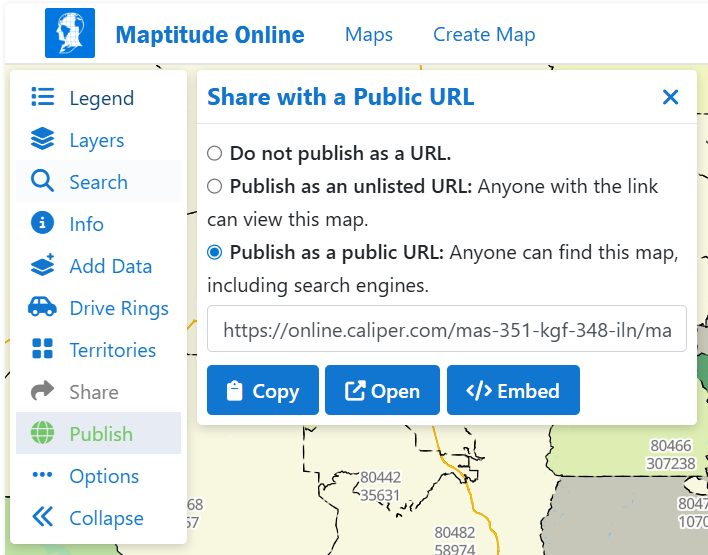
- Click Share > Publish in the left-hand panel.
- In the Share with a Public URL dialog, choose one of the following options:
- Unlisted URL: Anyone with the link can view the map.
- Public URL: Anyone can find and view the map, including through search engines.
- After publishing, you will see three buttons:
- Copy – copies the direct URL of your map.
- Open – opens the map in a new browser tab.
- Embed – shows an HTML iframe snippet for use on websites.
- For Tableau, click Copy and note the URL only. You will use that in the next step.
Step 2: Add the Map to Tableau
- Open your dashboard in Online Tableau.
- If you do not have a Tableau license, you can register for a free trial, which includes the Web Page object feature.
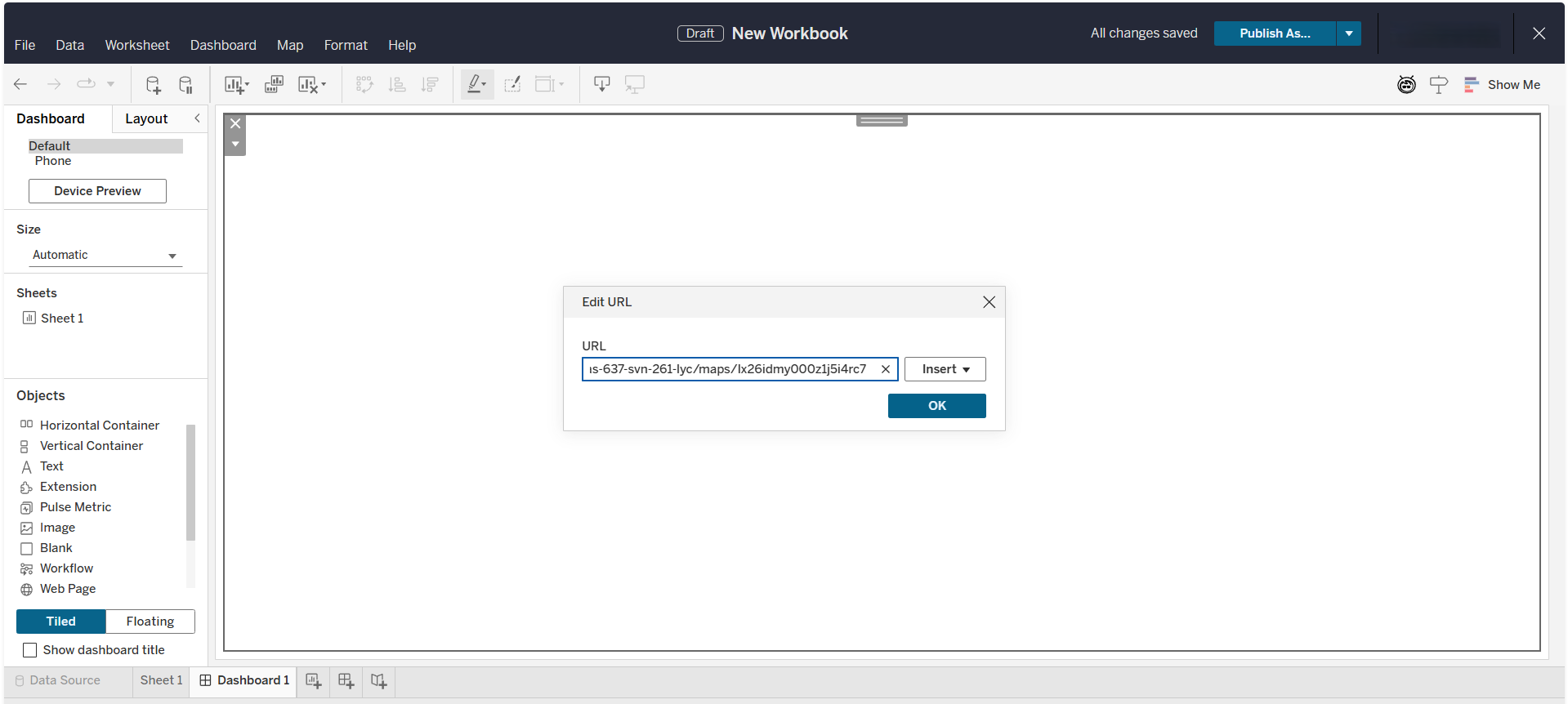
- In the Objects pane, drag a Web Page object into your dashboard layout.
- When Tableau prompts for a URL, paste the Maptitude Online map URL you copied in Step 1.
- Click OK, then resize the Web Page container so the map fits cleanly within the dashboard.
Example Embed
Here is a working iframe snippet generated by Maptitude Online. This example shows the closest NFL stadium to every ZIP Code in the United States:
<iframe src="https://online.caliper.com/mas-637-svn-261-lyc/maps/lx26idmy000z1j5i4rc7"
        title="Maptitude Online Interactive map of closest NFL stadium to every ZIP Code"
        style="width:100%;height:720px;">
</iframe>
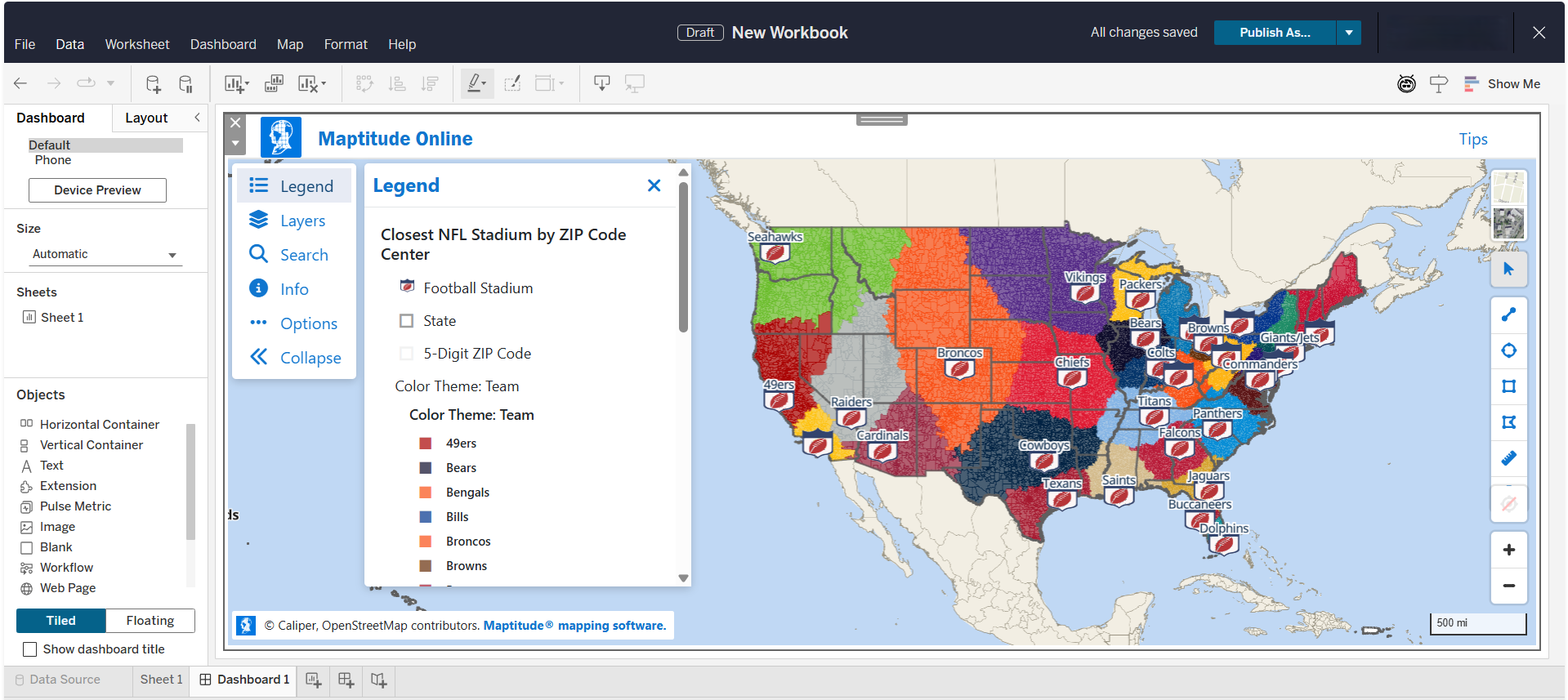
This is the same embed generated by Maptitude Online for websites. In Tableau, however, you should paste only the map URL into the Web Page object, not the full iframe code. Once added, the live map will display directly inside your dashboard.
Step 3: Publish Your Tableau Dashboard
Anyone who opens your dashboard will see the interactive Maptitude Online map directly inside Tableau. Users can pan, zoom, and click features just as they can on the Maptitude Online site.
- Save the dashboard.
- Go to File > Publish As…
Notes
- Do not paste HTML iframe code into Tableau. Tableau accepts only URLs.
- The map must be published as an Unlisted or Public URL. Private maps requiring login will not display.
- The same URL can also be used in other BI tools or websites that support iframe or web-page embedding.
Tableau is a trademark of Salesforce, Inc.
Caliper Corporation is not affiliated with or endorsed by Salesforce, Inc.