
Last Updated: March 5, 2026
You can rotate the map display in Maptitude mapping software using the Immediate Execution tool in the GIS Developers Kit (GISDK). This approach allows you to quickly rotate the map to a specific angle without changing the map projections.
By running a short GISDK command in the Immediate Execution window, you can set the map rotation to any angle between 0 and 359 degrees. This can be useful for presentations, aligning the map with a particular feature, or creating map exports with a custom orientation.
Table of Contents
Quick Method: Rotate the Map Using Immediate Execution
Follow these steps to rotate the map display using the GISDK Immediate Execution tool.
- Download and install a free trial of Maptitude mapping software, or use your existing license.
- Open the map that you want to rotate.
- Choose Tools > GIS Developers Kit > GISDK Toolbar.
- Click the Immediate Execution button (the lightning bolt icon) on the GISDK toolbar.
- Copy and paste the following code into the Immediate Execution window:
RotateMap(, 90)
RedrawMap()
- Click Run to execute the command.
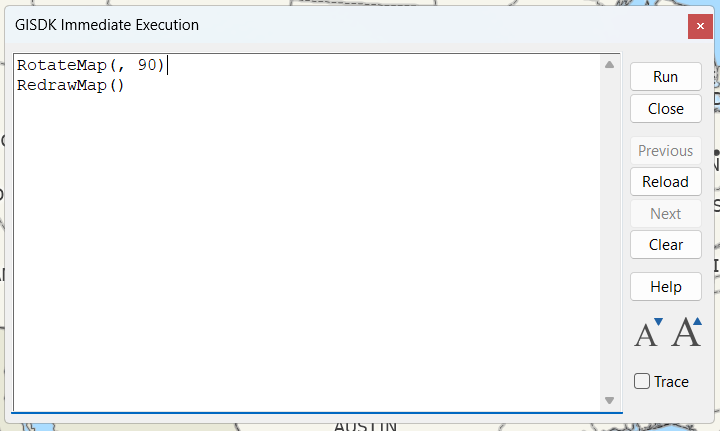
The map will rotate immediately based on the angle specified in the command.
How the Rotation Command Works
The rotation value in the command determines the orientation of the map:
- 0 represents the default orientation with north at the top.
- Values between 0 and 359 rotate the map clockwise.
- For example:
- 45 rotates the map 45 degrees.
- 90 rotates the map so east appears at the top.
- 180 rotates the map upside down.
To change the rotation, edit the value in the second line of the code:
RotateMap(, 180)
Then click Run again to update the map.
Why Rotate a Map?
Rotating a map can be helpful in several situations:
- Align the map with roads, coastlines, or other geographic features
- Improve readability for presentation or printed maps
- Create custom orientations for exported map images
- Quickly test map rotation when developing GISDK scripts