
Last Updated: October 23, 2026
You can choose the best locations for your facilities using location analysis software. The Maptitude Facility Location tool finds the best sites for depots, branches, stores, or service bases based on where your clients are, how far they are willing or able to travel, and how much demand each client represents.
This makes it a useful tool for questions such as:
- Where should I open a new depot or branch?
- Which of my candidate sites would serve my customers best?
- If I have to go from 12 service territories to 11, which location should close, and how should the remaining coverage be divided?
Contents
- What You Need Before Running the Facility Location Tool
- Prepare Your Client and Facility Layers
- Run the Facility Location Tool
- Review and Compare Facility Location Results
What You Need Before Running the Facility Location Tool
The Facility Location tool works with point or area layers on your map. You will typically use:
- A clients layer: the customers, patients, or service locations you need to reach.
- A facilities layer (optional): your existing locations, such as depots, branches, or sites.
- A candidate facilities layer: potential locations you are considering, such as possible new depots or a list of possible new store sites. If you do not have candidate locations yet, see how to use the Facility Location tool without candidate facilities.
The layer names are up to you. “Sites,” “depots,” and “branches” can all mean the same thing; the names simply help you tell your existing locations apart from your potential ones.
If your existing and candidate facilities are in the same layer, create a separate selection set for each. The same feature cannot be in both sets.
If you want certain clients to count more heavily than others, include a numeric field in your clients layer that you can use as a weight, such as number of units sold or number of shipments.
Download a free mapping software trial of Maptitude Desktop or use your existing Maptitude Desktop license.
Prepare Your Client and Facility Layers
Before running the analysis, add your clients, facilities, and candidate layers to the map and make them easy to tell apart.
- Add each layer you plan to use to your map so that it appears in the map’s Display Manager.
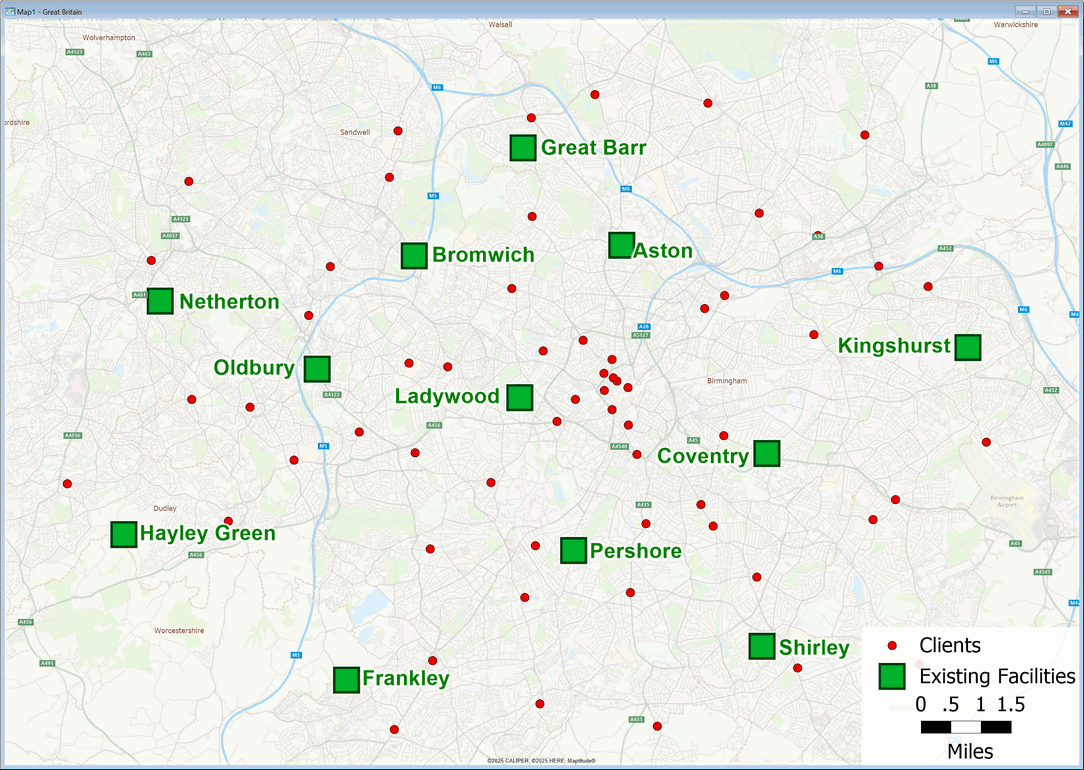
- Give each layer a distinct symbol. For example, change the Existing Facilities layer from a dot to a Filled Square so it stands out from your Client points.
- Right-click a layer in the Display Manager and choose Zoom to Layer to see all of its features. This is a quick way to confirm that every location is where you expect it to be.
Run the Facility Location Tool
Choose Tools>Analysis>Facility Location to open the Facility Location tool. The tool walks you through each step, and the explanation panel on the left side of each page describes what the step does and what the software needs from you. Following that panel is the easiest way to work through the tool.
Choose your clients
- Choose your clients layer from the Layer drop-down list.
- From the Client Set drop-down list, choose All Features, or choose a selection set if you want to analyze only some of your clients.
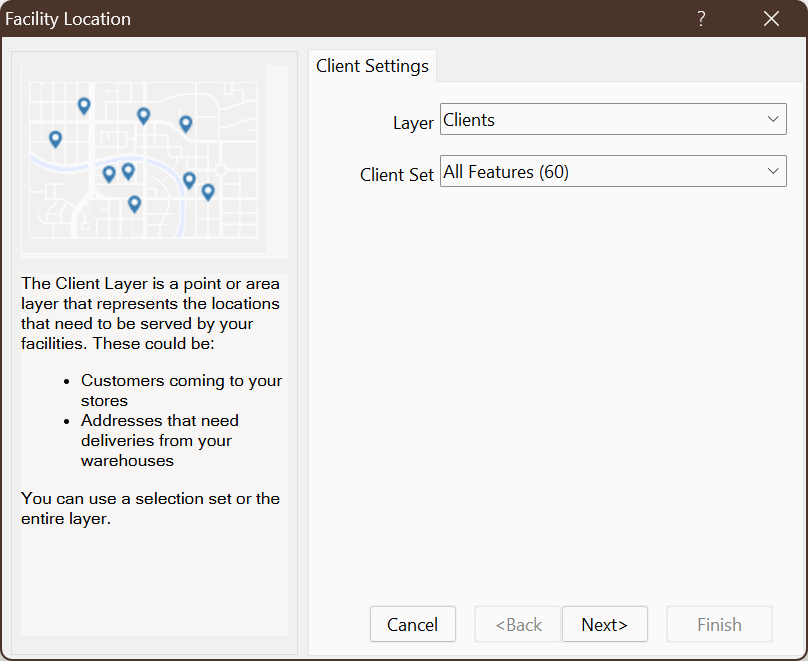
Choose the Clients layer and All Features. - Click Next.
Choose your existing and candidate facilities
- Indicate whether you have existing facilities. In this example, choose I do not have existing facilities.
- Under candidate facilities, choose the layer of potential locations (for example, your Existing Facilities layer). You can include all of the candidates or only a selection of them. In this example, the Existing Facilities layer holds all 12 current locations. Because any of them might close, it is used as the candidate layer.
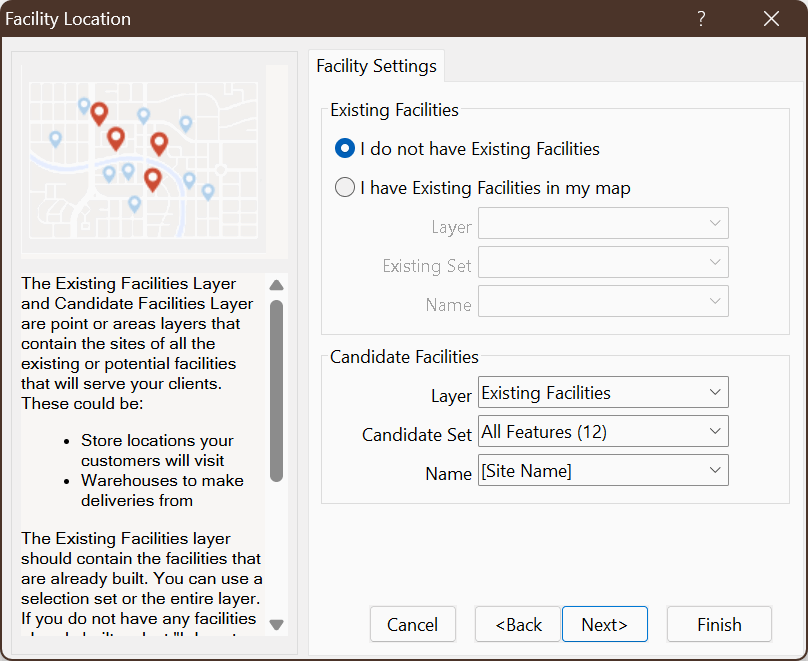
Choose your Existing Facilities layer for Candidate Facilities, All Features, and the field that contains the facility name.
Candidates let you test “what if” scenarios. For example, if you have four restaurants and a list of four possible locations for a fifth, you can include all four candidates, or just one, and see how each choice affects service to your customers.
Choose how distance is measured
- Choose to measure travel along routes rather than straight lines when you want results that reflect real road travel.
- Choose Shortest to measure by distance or Fastest to measure by travel time.
- Optionally, check Skip routes longer than and enter a maximum distance or time, for example 25 miles. Clients farther away than this value are left out of the analysis and are not assigned to any facility, so a small value can drop many clients from your results. Leave the box unchecked if you want every client included.
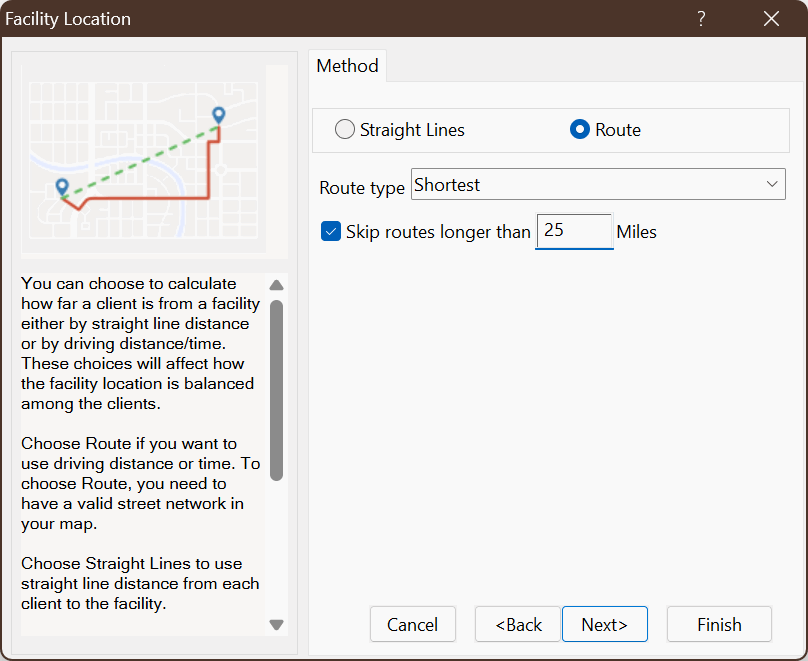
Choose the method, route type, and enter the distance/time.
Choose how many facilities to locate
You can set the number of facilities yourself or let Maptitude find it for you:
- Manual: enter how many new facilities the tool should pick from your candidates. For example, enter 1 to have the tool choose the single best candidate.
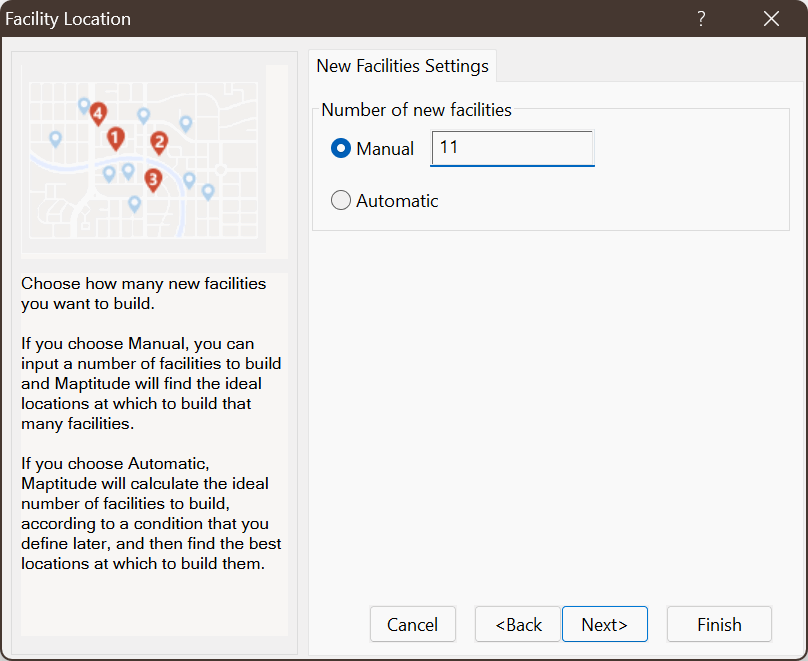
Choose Manual and enter 11 as the number of facilities. - Automatic: Maptitude determines the number of facilities according to conditions that you specify in the next step. Use this when your question is “What is the fewest sites I need?”
To model reducing territories, such as going from 12 locations to 11, put all 12 current locations and use them as candidates rather than as existing facilities, choose Manual, and enter 11. The tool then decides which 11 to keep and which one to close.
Choose your service goal and weighting field
If you chose Manual, choose the goal that matches what you are trying to achieve:
- Best overall service: the lowest average distance or time to your clients, even if a few clients end up much farther away than average. This is a good default.
- Best service for clients that are farthest away: gives the best possible service to the client who is farthest from any facility. This is often used for emergency services.
- Keep facility/facilities away from clients: places facilities as far as possible from the nearest client, for facilities you want located away from people, such as a landfill or waste disposal site.
If you chose Automatic, choose the condition the tool must meet and enter a value:
- Average Time/Distance <= finds the fewest facilities that bring the average client below your value. Some individual clients may still be far away.
- Highest Time/Distance <= finds the fewest facilities that bring every client below your value.
Next, choose a weighting field if you have one, or choose Not Weighted to treat all clients equally. Weighting pulls the result toward clients that matter more. For example, if you weight by number of shipments or number of units, clients with more volume will pull the suggested location closer to them.
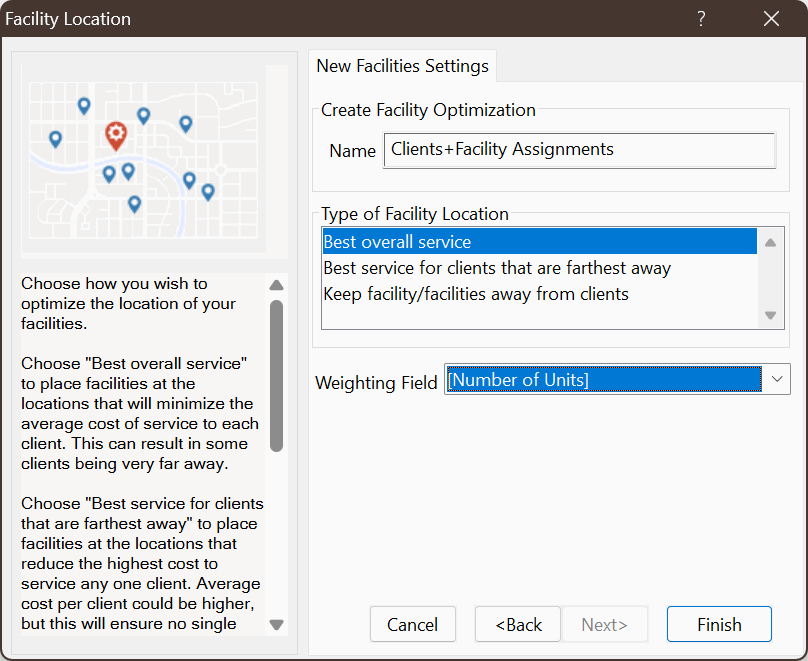
Click Finish to run the analysis.
Review and Compare Facility Location Results
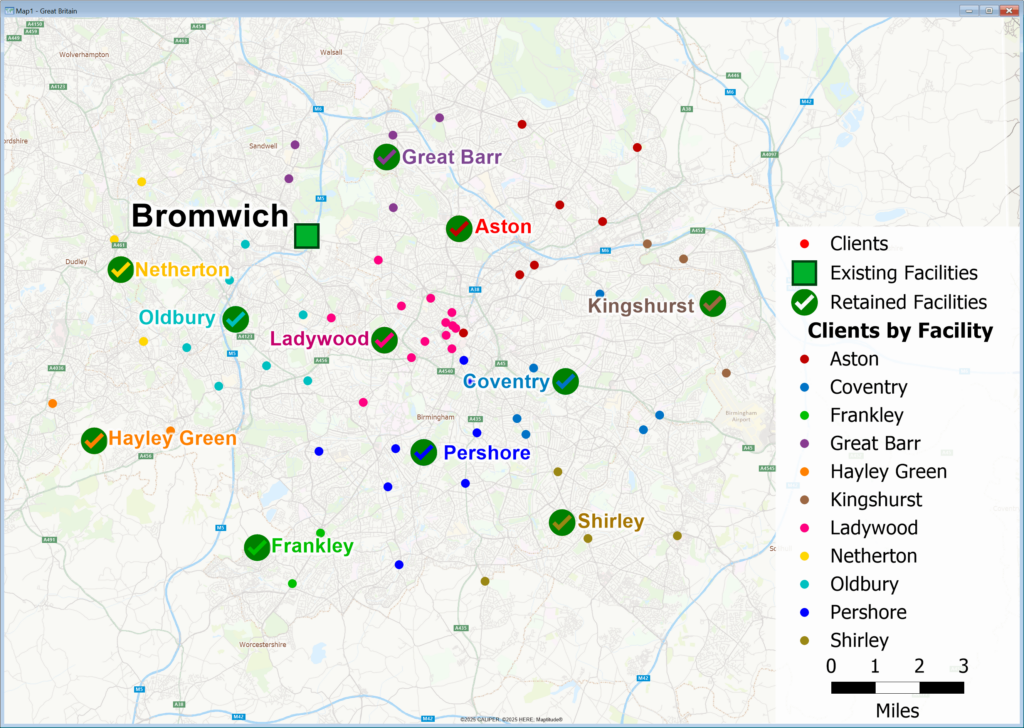
When the analysis finishes, Maptitude creates a selection set of the suggested facilities and highlights them on the map. The selection set is always a subset of your candidates. For example, it may be called “New Facilities.” Rename the selection set so it is easy to understand which facilities will be kept open.
- Right-click “New Facilities” in the Display Manager.
- Choose Rename.
- Enter the new name “Retained Facilities”.
- Click OK.
The map redraws with the renamed selection set displaying in the legend.
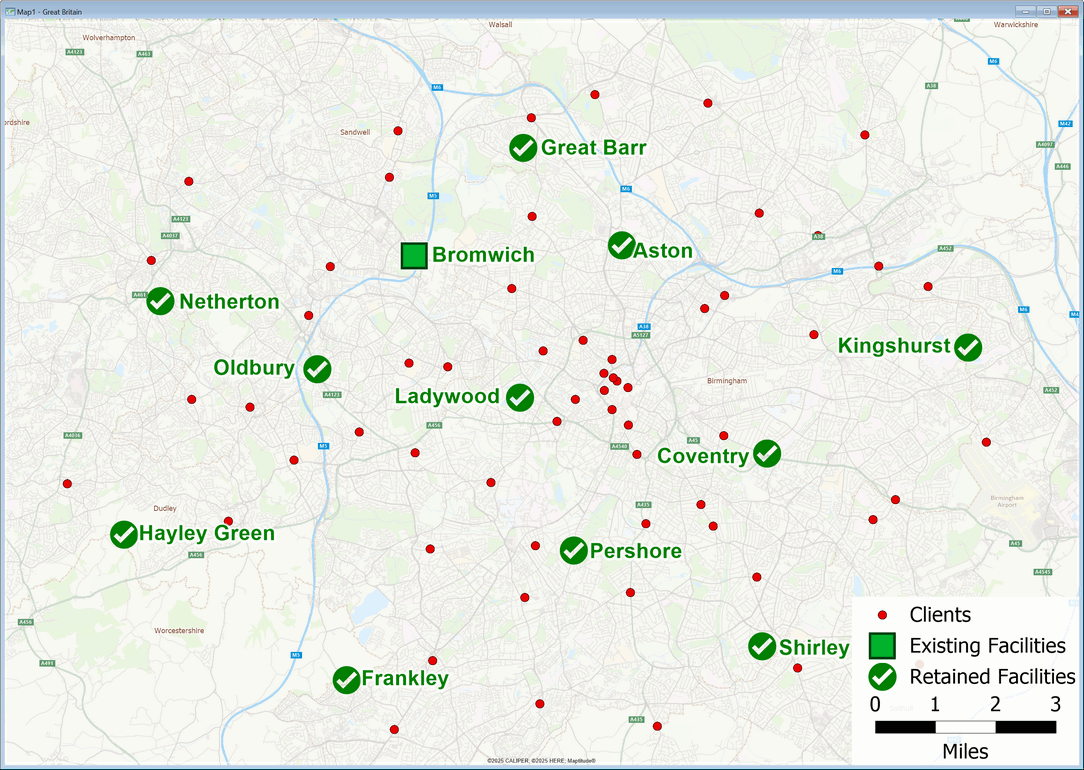
Of the 12 candidates, the tool recommends keeping 11, marked with a check. Closing Bromwich keeps the average distance to clients as low as possible.
Maptitude also opens a dataview of the facility assignment table joined to your clients layer. For each client, the table shows the facility it is assigned to and the distance or time from that client to its facility. If you used a weighting field, the table also includes a weighted distance or time.
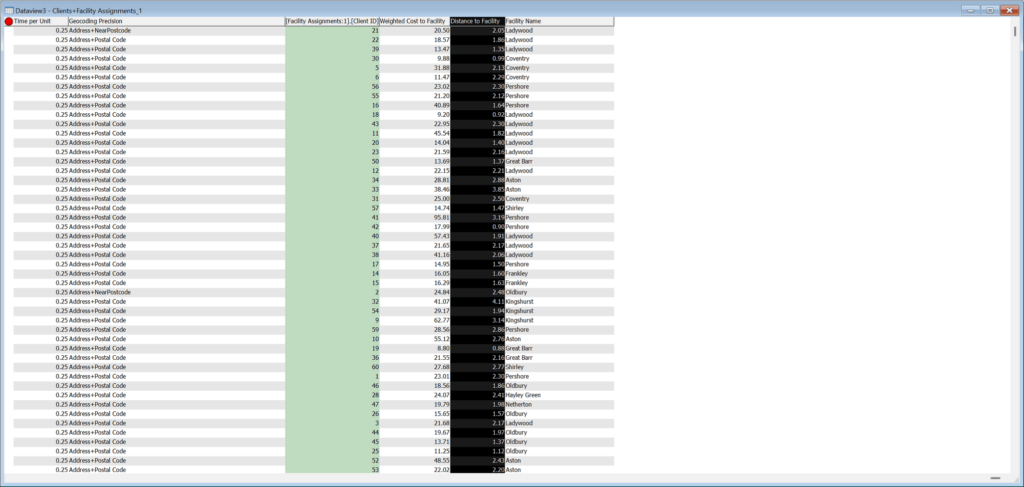
Use this table to see how coverage is divided among your facilities. For example, make the clients layer the working layer, click Color Theme in the thematic mapping drop-down on the Standard toolbar, and choose [Facility Name] from the Field drop-down list. Each client is then colored by the facility that serves it. In the 12-to-11 example, this shows clients with the facility serving them after the Bromwich facility closes.
To get the most out of the tool:
- Run a few iterations. Try Best overall service and then Best service for clients that are farthest away, and compare where each puts the suggested facility.
- Start from your current situation. Map your locations as they are today first. That gives you an “as-is” picture to compare against, so you can see where coverage is already fine and where a gap needs to be filled.
- Try different weights and distances. Changing the weighting field or the distance setting can shift the result and help you test how sensitive your decision is.
Conclusion
The Maptitude Facility Location tool helps you decide where facilities should go, or which ones to keep, by combining your client locations, your existing and candidate sites, travel distance or time, and how much each client matters. For more information, please see the Maptitude Facility Location video.